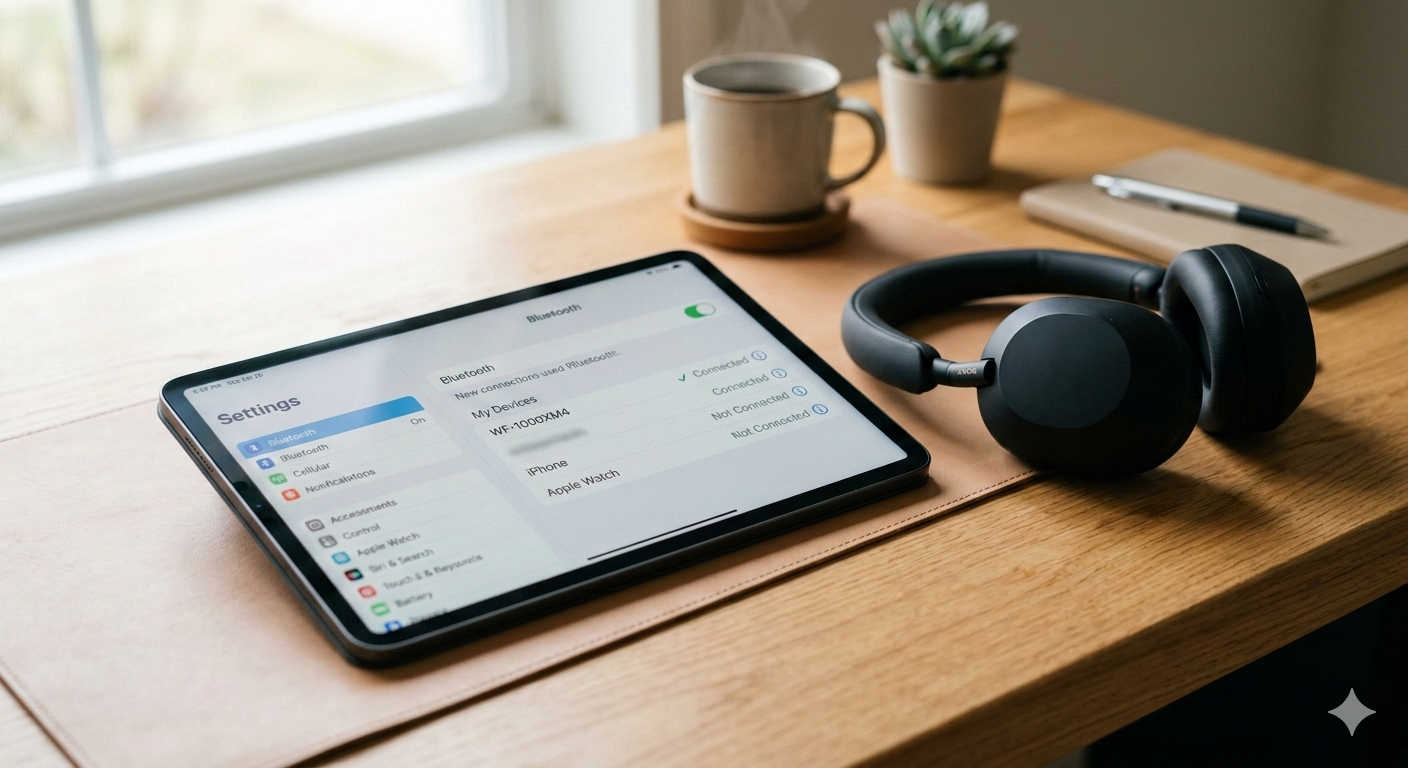
Connecting Sony headphones to an iPad is usually quick and straightforward, but many users still struggle with pairing issues, Bluetooth settings, or getting the best sound quality after connecting. Whether you own Sony wireless earbuds, noise-canceling headphones, or wired models, understanding the correct setup process can save time and prevent frustration.
This guide explains exactly how to connect Sony headphones to an iPad, troubleshoot common problems, improve audio performance, and optimize your listening experience. By the end, you will know not only how to connect them but also how to make them work better than most users realize.
Why Sony Headphones Work Well With iPad
Sony headphones are designed to work across multiple platforms, including Apple devices. Even though Apple promotes AirPods heavily, Sony headphones remain extremely popular among iPad users because they offer:
- Excellent sound quality
- Advanced noise cancellation
- Long battery life
- Reliable Bluetooth connectivity
- Custom sound controls
Modern iPads support standard Bluetooth audio protocols, which means most Sony headphones connect without needing additional accessories or complicated configuration.
Before You Start: What You Need
Before pairing your devices, make sure you have the following ready:
- A charged pair of Sony headphones
- An iPad with Bluetooth enabled
- Updated iPadOS (recommended but not required)
- Headphones close to the iPad (within 1–2 meters)
Low battery levels are one of the most common reasons connections fail, so charging first helps avoid unnecessary troubleshooting later.
Step-by-Step: How to Connect Sony Headphones to iPad
Step 1: Turn On Pairing Mode on Sony Headphones
Your headphones must be in pairing mode before the iPad can detect them.
For most Sony wireless models:
- Turn off the headphones completely.
- Press and hold the power button for about 7 seconds.
- Wait until the LED indicator flashes blue (or blue and red).
- You may hear a voice prompt saying “Bluetooth pairing.”
This means the headphones are discoverable.
Some Sony earbuds automatically enter pairing mode the first time you remove them from the charging case.
Step 2: Enable Bluetooth on the iPad
Now prepare your iPad:
- Open Settings
- Tap Bluetooth
- Toggle Bluetooth ON if it is off
Your iPad will immediately start searching for nearby devices.
Step 3: Select Your Sony Headphones
Within a few seconds, your headphone model name should appear under available devices.
Examples include:
- WH-1000XM5
- WH-CH720N
- WF-1000XM4
Tap the device name once.
After a moment, the status will change to Connected.
Your Sony headphones are now successfully paired with the iPad.
How to Reconnect Automatically Later
After the first connection, pairing becomes easier.
Next time you use your headphones:
- Turn them on
- Ensure Bluetooth is enabled on the iPad
They will reconnect automatically in most cases.
If they connect to another device instead (like your phone), simply select them again in Bluetooth settings.
Connecting Sony Wired Headphones to an iPad
Not all Sony headphones rely on Bluetooth. Wired models can still work perfectly.
For iPads With USB-C Ports
You may need a USB-C to 3.5mm headphone adapter.
Steps:
- Connect the adapter to the iPad.
- Plug in the headphone cable.
- Audio switches automatically.
No setup or pairing required.
Common Problems and How to Fix Them
Even reliable devices sometimes fail to connect. Below are practical fixes that solve most issues quickly.
Headphones Not Showing in Bluetooth List
Try these solutions:
- Turn Bluetooth off and on again
- Restart the iPad
- Reset headphones and re-enter pairing mode
- Move away from other wireless devices
Often the headphones are connected to another device already, preventing discovery.
Connection Keeps Dropping
Possible causes include interference or low battery.
Fix by:
- Charging headphones fully
- Keeping devices nearby
- Turning off unused Bluetooth devices
- Updating iPad software
Connected But No Sound
If audio plays through speakers instead:
- Open Control Center.
- Tap the audio output icon.
- Select your Sony headphones manually.
Only One Earbud Works
For true wireless earbuds:
- Put both earbuds back in the case.
- Close lid for 10 seconds.
- Remove them together.
- Reconnect.
This resets synchronization between earbuds.
Improve Sound Quality on iPad With Sony Headphones
Many users connect successfully but never optimize audio settings. Here’s how to improve listening quality instantly.
Adjust iPad EQ Settings
- Open Settings
- Go to Music
- Tap EQ
- Choose a preset like:
- Bass Boost
- Acoustic
- Late Night
Experiment to find your preferred sound profile.
Use Sony Headphones Connect App
Sony provides a dedicated app that unlocks advanced features.
Inside the app you can:
- Customize equalizer settings
- Adjust noise cancellation strength
- Update firmware
- Enable adaptive sound control
- Monitor battery life
Installing this app significantly enhances functionality compared to basic Bluetooth use.
Understanding Noise Cancellation on iPad
Sony’s Active Noise Cancellation works independently of the iPad. Once enabled on headphones or through the Sony app, it continues working regardless of the device.
You can switch between:
- Noise Canceling Mode (blocks background noise)
- Ambient Sound Mode (lets outside sound in)
- Standard Mode
This makes Sony headphones ideal for travel, study, or office environments.
Multipoint Connection Explained
Some modern Sony headphones allow connection to two devices simultaneously.
Example setup:
- iPad for watching videos
- Smartphone for calls
When a call comes in, audio automatically switches devices.
To enable multipoint:
- Pair headphones with first device.
- Enter pairing mode again.
- Connect second device.
Not all models support this feature, so check specifications.
Recommended Sony Headphones for iPad Users
Choosing the right headphones improves your overall experience. Here are excellent options based on different needs.
Best Premium Choice: Sony WH-1000XM5
Ideal for users who want top-tier noise cancellation and immersive sound. Perfect for movies, productivity, and travel.
Best Mid-Range Option: Sony WH-CH720N
Lightweight, affordable, and reliable for everyday listening and online classes.
Best Wireless Earbuds: Sony WF-1000XM5
Compact earbuds with impressive sound clarity and strong noise cancellation.
Budget Friendly Option: Sony WF-C500
Great entry-level earbuds with stable Bluetooth performance and good battery life.
Tips for Daily Use With iPad
Keep Firmware Updated
Updates often fix connectivity bugs and improve performance.
Avoid Bluetooth Overload
Too many connected devices nearby can interfere with signal stability.
Charge Regularly
Low battery causes lag, distortion, and disconnections.
Rename Your Headphones
In Bluetooth settings, rename your device to easily identify it among multiple accessories.
Frequently Asked Questions (SEO FAQ Section)
Can Sony headphones connect to an iPad without an app?
Yes. Bluetooth pairing works without any app. The Sony app simply adds extra features and customization.
Why won’t my Sony headphones connect automatically?
They may be connecting to another previously paired device. Turn off Bluetooth on nearby devices or reconnect manually.
Do Sony headphones support Apple Spatial Audio?
Standard audio works perfectly, but full Apple Spatial Audio features are optimized mainly for AirPods.
Is there audio delay when watching videos?
Most modern Sony headphones minimize delay using improved Bluetooth technology. Streaming apps usually compensate automatically.
Can I use Sony headphones for Zoom or FaceTime on iPad?
Yes. The built-in microphone works for video calls, meetings, and voice chats.
How many Sony headphones can connect to one iPad?
Only one audio output device can actively play sound at a time via Bluetooth.
Why does sound feel low even at high volume?
Check volume limits in:
Settings → Sounds → Headphone Safety.
Advanced Troubleshooting: Resetting Everything
If problems persist:
Reset Sony Headphones
Hold the power and custom button together for about 10 seconds (varies by model).
Reset iPad Network Settings
Go to:
Settings → General → Transfer or Reset iPad → Reset → Network Settings.
You will need to reconnect Wi-Fi afterward.
Benefits of Using Sony Headphones With an iPad
Many users prefer Sony over Apple headphones because they offer:
- Stronger bass response
- More customizable sound
- Longer battery life
- Cross-platform compatibility
- Competitive pricing
For students, professionals, and travelers, this flexibility is a major advantage.
Final Thoughts
Learning how to connect Sony headphones to an iPad is simple once you understand the pairing process. Most issues occur because headphones are not in pairing mode or are already connected to another device.
The basic workflow is always the same:
- Activate pairing mode on Sony headphones.
- Enable Bluetooth on the iPad.
- Select the headphone name.
- Customize settings for better sound.
Once connected, Sony headphones provide an excellent audio experience for movies, music, online meetings, and gaming. With proper setup and optimization, they can perform just as seamlessly as Apple-native accessories — sometimes even better.