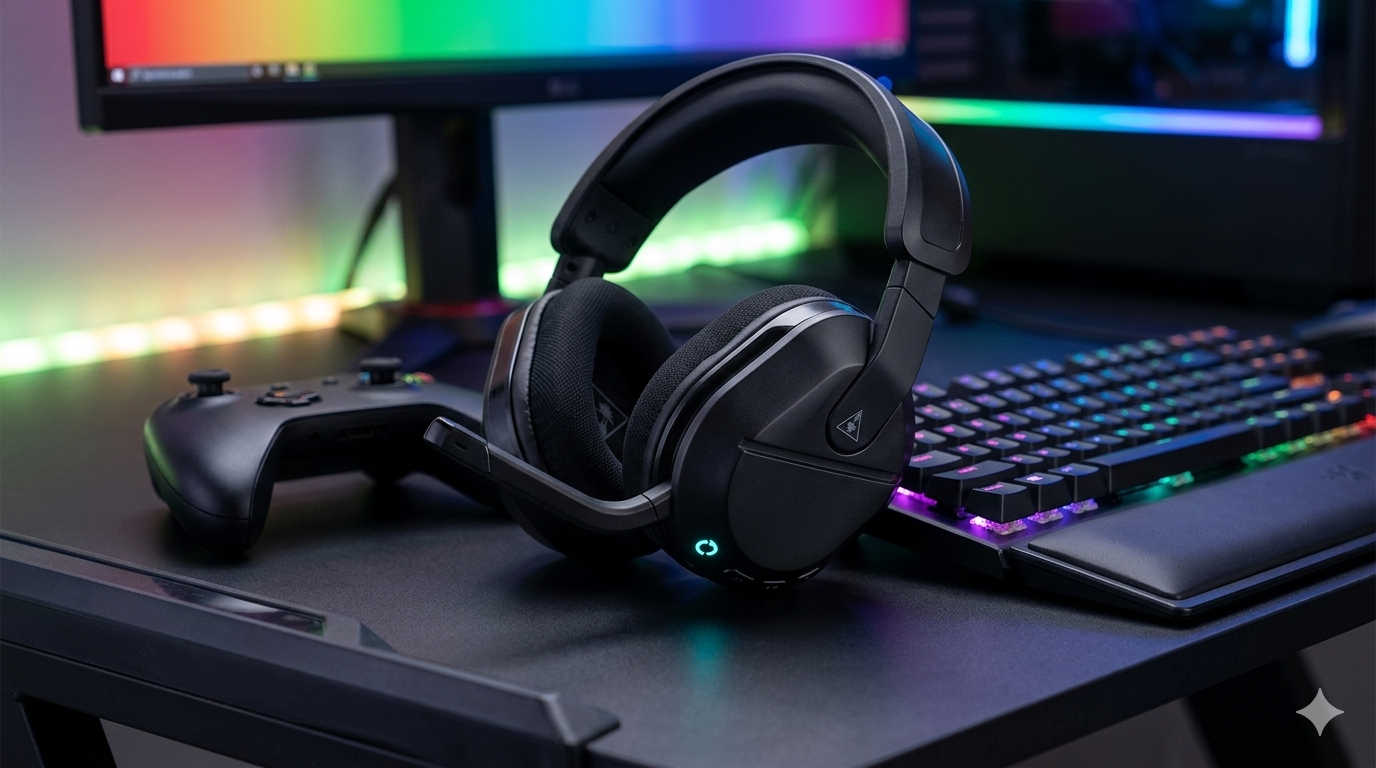
If your Turtle Beach Stealth 600 suddenly stops connecting, the audio cuts out mid-game, or your mic refuses to work, don’t panic. Most issues with this popular wireless gaming headset can be fixed in just a few minutes with the right reset method.
In this guide, you’ll learn exactly how to reset Turtle Beach Stealth 600 step-by-step. We’ll cover soft reset, hard reset, and factory reset methods, along with troubleshooting tips for Xbox, PlayStation, PC, and Nintendo Switch users. Whether you’re dealing with pairing problems, distorted sound, or an unresponsive headset, this guide will help you get back to gaming quickly.
Let’s get started.
Why You Might Need to Reset Your Turtle Beach Stealth 600
The Turtle Beach Stealth 600 is known for reliable wireless performance and strong audio quality. However, like any electronic device, it can experience temporary glitches or configuration errors.
Common reasons you may need to reset your headset include:
- Headset not connecting to Xbox, PlayStation, or PC
- Audio cutting in and out
- No sound at all
- Microphone not working
- Headset stuck in pairing mode
- Distorted or crackling audio
- Buttons not responding
- Bluetooth pairing issues (Gen 2 models)
Resetting clears temporary software issues and restores normal functionality. In many cases, it solves problems instantly without needing repairs or replacement.
Before performing a full factory reset, it’s important to understand the different reset options available.
Types of Reset for Turtle Beach Stealth 600
Not all resets erase your settings. Choosing the correct method can save you time.
Soft Reset (Basic Restart)
A soft reset is simply turning the headset off and back on. It refreshes the internal system without deleting saved settings or pairings.
Best for:
- Minor connection drops
- Temporary sound glitches
- Quick troubleshooting
This should always be your first step.
Hard Reset (Forced Restart)
A hard reset forces the headset to completely power cycle and reinitialize. It is stronger than a simple restart but usually keeps your saved configurations intact.
Best for:
- Headset freezing
- Buttons not responding
- Persistent connection problems
Factory Reset (Full Reset)
A factory reset restores the Turtle Beach Stealth 600 to its original settings. This removes all paired devices and custom configurations.
Best for:
- Pairing failures
- Ongoing mic or audio issues
- Bluetooth problems
- Selling or giving away the headset
Use this option only when other resets don’t fix the issue.
How to Soft Reset Turtle Beach Stealth 600
This is the fastest and safest method.
- Press and hold the Power button for about 3 seconds until the headset turns off.
- Wait 10–15 seconds.
- Press the Power button again to turn it back on.
That’s it. Test your audio and connection to see if the issue is resolved.
In many cases, this quick restart fixes temporary glitches.
How to Hard Reset Turtle Beach Stealth 600
If a simple restart doesn’t work, try this method.
- Turn off the headset completely.
- If using a USB transmitter, unplug it from your console or PC.
- Wait about 30 seconds.
- Press and hold both the Power button and the Mic Mute button at the same time.
- Hold them for around 10–15 seconds.
- Release the buttons and turn the headset back on normally.
- Plug the USB transmitter back in (if applicable).
You should see the LED flash or hear a tone indicating the headset has restarted.
This reset method often resolves deeper connection or performance issues.
How to Factory Reset Turtle Beach Stealth 600
If your headset still isn’t working properly, a full factory reset may be necessary.
Important: This will erase paired devices and custom audio settings.
Follow these steps carefully:
- Power off the headset.
- Press and hold the Power button, Mic Mute button, and Volume Up button together.
- Continue holding for 15–20 seconds.
- Watch for the LED indicator to flash rapidly.
- Release all buttons.
- Turn the headset back on.
Your Turtle Beach Stealth 600 is now restored to factory settings.
You will need to re-pair it with your console or PC.
How to Re-Pair After Reset
After a factory reset, you must reconnect the headset to your device.
Xbox
- Plug the USB transmitter into your Xbox console.
- Press the Pair button on the transmitter.
- Turn on the headset and hold the Power button until it enters pairing mode.
- Wait for the connection to complete.
You should see a solid LED light once connected.
PlayStation (PS4 / PS5)
- Insert the USB transmitter into the console.
- Turn on the headset.
- It should automatically pair.
- If not, press the pairing button on the transmitter and then power on the headset in pairing mode.
Check your PlayStation audio settings to ensure the headset is selected as both input and output device.
PC (Windows)
For USB connection:
- Plug in the transmitter.
- Turn on the headset.
- Set it as the default audio and communication device in Sound Settings.
For Bluetooth models:
- Put the headset in pairing mode.
- Go to Windows Bluetooth settings.
- Select “Add Device.”
- Choose the Turtle Beach Stealth 600 from the list.
Nintendo Switch
For USB adapter use:
- Plug the transmitter into the dock.
- Turn on the headset.
- Wait for automatic pairing.
For Bluetooth-enabled models:
- Use pairing mode and connect via Switch Bluetooth settings.
Fixing Common Problems After Reset
If issues continue even after resetting, try the following solutions.
No Sound From Headset
- Ensure the headset is fully charged.
- Increase volume on both headset and console.
- Confirm correct audio output settings on your device.
- Try a different USB port.
Microphone Not Working
- Make sure the mic boom is fully lowered (it mutes when flipped up).
- Check console or PC input settings.
- Test in another app or game.
- Perform a factory reset if mic remains unresponsive.
Headset Keeps Disconnecting
- Move closer to the console.
- Reduce wireless interference from routers or other 2.4GHz devices.
- Fully charge the battery.
- Re-pair after factory reset.
Static or Crackling Sound
- Ensure the transmitter is firmly plugged in.
- Keep away from Wi-Fi routers.
- Update firmware if available.
- Try a reset again if distortion continues.
When Reset Doesn’t Fix the Problem
If you’ve tried soft reset, hard reset, and factory reset but still experience issues, consider these additional steps:
- Update headset firmware using Turtle Beach software.
- Test the headset on another device.
- Replace the USB transmitter if faulty.
- Contact Turtle Beach customer support for warranty assistance.
Sometimes hardware damage or a defective transmitter can cause persistent issues that resets cannot solve.
Tips to Prevent Future Issues
To reduce the need for frequent resets, follow these best practices:
- Keep your headset charged above 20%.
- Avoid letting the battery drain completely often.
- Store it in a cool, dry place.
- Keep firmware updated.
- Avoid heavy wireless interference near your gaming setup.
- Clean the charging port and earcups regularly.
Proper care extends the life of your Turtle Beach Stealth 600 and maintains sound quality.
Frequently Asked Questions
Does resetting delete my game settings?
No. Resetting only affects the headset itself. Your console and game settings remain unchanged.
How often should I reset my headset?
Only when necessary. Frequent resets are not required unless you experience issues.
Will a reset improve sound quality?
If poor audio is caused by software glitches or connection errors, yes. However, it will not improve damaged hardware.
Why is my Stealth 600 not pairing?
This usually happens due to saved corrupted pairing data. A factory reset followed by fresh pairing typically solves it.
Final Thoughts
Knowing how to reset Turtle Beach Stealth 600 properly can save you hours of frustration. Most connection problems, audio glitches, and mic issues are caused by temporary software conflicts that can be resolved with a simple reset.
Start with a soft reset. If the issue continues, try a hard reset. Only use factory reset when necessary. After resetting, carefully re-pair your headset with your console or PC and double-check your audio settings.
With the right troubleshooting steps, your Turtle Beach Stealth 600 should be back to delivering immersive game audio and clear communication in just minutes.
If you’re still facing problems, firmware updates or customer support may be your next best step.