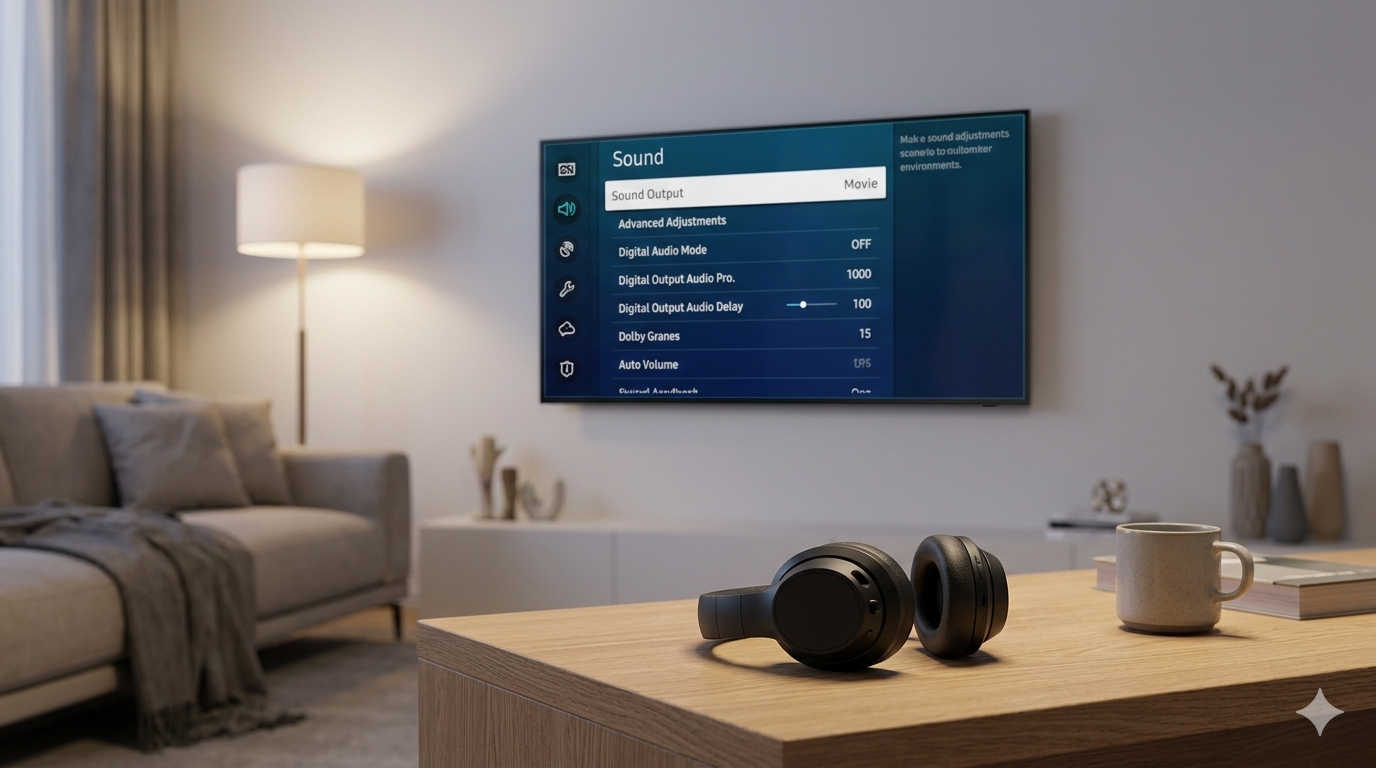
Connecting Bluetooth headphones to a Samsung TV is one of the easiest ways to upgrade your viewing experience. Whether you’re watching late at night, living in a shared apartment, or simply prefer the clarity of headphones over built-in TV speakers, wireless audio gives you flexibility and privacy without messy cables.
If you’ve tried digging through menus and felt confused by different model numbers, settings layouts, or missing Bluetooth options, you’re not alone. Samsung has updated its interface several times over the years, and not all TVs include built-in Bluetooth.
This complete guide explains everything clearly and step by step — from checking compatibility to pairing your headphones, fixing audio delay, and connecting older Samsung TVs that don’t have Bluetooth support.
Let’s walk through it.
Why Connect Bluetooth Headphones to a Samsung TV?
Before jumping into the setup process, it helps to understand why so many people prefer Bluetooth headphones for TV viewing.
Private Listening Without Disturbing Others
This is the most common reason. If you watch TV late at night or share your home with others, Bluetooth headphones allow you to enjoy your favorite shows at full volume without waking anyone up.
Better Sound Quality
TV speakers are often small and limited. A good pair of headphones can dramatically improve dialogue clarity, bass depth, and overall immersion.
No Wires Across the Room
Running a cable from your couch to your TV isn’t practical. Bluetooth gives you freedom of movement without sacrificing comfort.
Helpful for Hearing Differences
Many viewers prefer headphones because they can better control volume levels and isolate background noise.
Does Your Samsung TV Support Bluetooth?
Most Samsung Smart TVs manufactured from 2016 onward include built-in Bluetooth support. However, some budget models and older units do not.
Quick Way to Check
- Turn on your Samsung TV.
- Press the Home button on your remote.
- Go to Settings.
- Select Sound.
- Choose Sound Output.
If you see an option called Bluetooth Speaker List, your TV supports Bluetooth audio devices.
If you do not see this option, your TV likely does not have built-in Bluetooth — but don’t worry, there’s still a solution (covered later in this guide).
How to Connect Bluetooth Headphones to a Samsung Smart TV
The exact wording of menu options may vary slightly depending on your TV model, but the overall process is very similar across Samsung Smart TVs.
Step 1: Put Your Headphones in Pairing Mode
Before your TV can detect the headphones, they must be in pairing mode.
Typically:
- Turn the headphones on.
- Press and hold the Bluetooth button (or power button) until a flashing light appears.
- Some models announce “Pairing” through the speakers.
If you’re unsure how to activate pairing mode, check your headphone manual.
Keep the headphones within 3–10 feet of the TV during setup.
Step 2: Open the Sound Settings on Your Samsung TV
Using your remote:
- Press Home.
- Select Settings.
- Navigate to Sound.
- Choose Sound Output.
You should see multiple output options such as TV Speaker, Receiver, or Bluetooth Speaker List.
Step 3: Select Bluetooth Speaker List
Click on Bluetooth Speaker List.
Your TV will begin scanning for nearby Bluetooth devices. This may take a few seconds.
When your headphones appear on the screen, select them.
Step 4: Confirm the Connection
Once connected, your TV should display a confirmation message.
At this point, the TV audio will automatically switch from the internal speakers to your Bluetooth headphones.
You can now adjust the headphone volume using either your headphone controls or the TV remote, depending on your model.
What If Your Samsung TV Doesn’t Have Bluetooth?
If you don’t see the Bluetooth option in your sound settings, your TV likely does not support Bluetooth natively. This is common with older models.
Fortunately, you can still connect wireless headphones using a Bluetooth transmitter.
How a Bluetooth Transmitter Works
A Bluetooth transmitter plugs into your TV’s audio output and sends the sound wirelessly to your headphones.
Common connection options include:
- 3.5mm headphone jack
- Optical (TOSLINK) output
- RCA audio output
How to Set It Up
- Plug the transmitter into your TV’s audio output.
- Power on the transmitter.
- Put your headphones in pairing mode.
- Pair them with the transmitter (not the TV).
Once paired, your TV audio will stream wirelessly through the transmitter to your headphones.
This solution works extremely well and is ideal for older Samsung TVs.
How to Fix Bluetooth Audio Delay (Lip Sync Issues)
One common concern when connecting Bluetooth headphones to a TV is audio delay. This happens because Bluetooth transmits audio digitally, which can introduce a slight lag.
If you notice that voices don’t match lip movements, try the following:
Adjust Audio Delay in TV Settings
- Go to Settings.
- Select Sound.
- Choose Expert Settings.
- Look for Digital Output Audio Delay.
Adjust the slider until audio and video are synchronized.
Use Low-Latency Bluetooth Devices
Some headphones and transmitters support low-latency audio codecs that reduce lag. If lip sync issues persist, upgrading to a low-latency transmitter can significantly improve performance.
How to Connect Two Bluetooth Headphones to a Samsung TV
Some newer Samsung TVs support dual audio output, allowing two Bluetooth devices to connect at the same time.
This is useful for couples or roommates who both want private listening.
To Enable Dual Audio:
- Go to Settings.
- Select Sound.
- Choose Sound Output.
- Open Bluetooth Speaker List.
- Pair the first headphone.
- Pair the second headphone.
If your model supports dual audio, both devices will remain connected simultaneously.
Keep in mind that volume levels may differ between devices.
Troubleshooting: Common Bluetooth Problems and Fixes
Even when following the correct steps, issues can occur. Here are the most common problems and how to solve them.
Headphones Not Showing in the List
Possible causes:
- Headphones not in pairing mode
- Headphones already connected to another device
- Low battery
- Too far from the TV
Fix:
- Turn off Bluetooth on nearby devices (like phones).
- Restart your headphones.
- Restart your TV.
- Move closer during pairing.
Connected But No Sound
If the TV says “Connected” but you hear nothing:
- Make sure Sound Output is set to Bluetooth.
- Increase headphone volume.
- Disconnect and reconnect the device.
- Restart both TV and headphones.
Audio Cutting In and Out
Bluetooth interference can cause audio dropouts.
Try:
- Moving closer to the TV.
- Reducing interference from Wi-Fi routers or microwaves.
- Ensuring both devices are fully charged.
- Updating your TV software.
How to Update Samsung TV Software
Keeping your TV updated improves compatibility and performance.
To update:
- Go to Settings.
- Select Support.
- Choose Software Update.
- Select Update Now.
If an update is available, install it and restart the TV.
Alternative Ways to Listen With Headphones
If Bluetooth isn’t ideal for your setup, consider these alternatives.
Wired Headphones
If your TV includes a headphone jack, simply plug in wired headphones for instant audio with zero delay.
Soundbar With Headphone Output
Some soundbars include a headphone port, offering another way to connect.
External Audio Receiver
If you already use a receiver or home theater system, it may support Bluetooth pairing directly.
Frequently Asked Questions
Can I Use Any Bluetooth Headphones With a Samsung TV?
Most modern Bluetooth headphones are compatible. However, older models may not pair smoothly. If issues occur, resetting the headphones usually helps.
Will Connecting Headphones Disable TV Speakers?
Yes. Once Bluetooth headphones are connected, TV speakers are automatically muted. You can switch back anytime in Sound Output settings.
Do All Samsung TVs Have Bluetooth?
No. Many Samsung Smart TVs do, but some entry-level or older models do not. Always check Sound Output settings to confirm.
How Far Can I Sit From the TV?
Most Bluetooth connections work reliably within 10–30 feet, depending on obstacles and interference.
Final Thoughts
Connecting Bluetooth headphones to a Samsung TV is easier than most people think. In most cases, it only takes a few minutes:
- Put your headphones in pairing mode.
- Open Sound settings.
- Select Bluetooth Speaker List.
- Connect.
If your TV doesn’t support Bluetooth, adding a transmitter solves the problem quickly and affordably.
Wireless headphones give you privacy, better sound, and flexibility — especially for late-night viewing or shared living spaces. Once connected, you’ll likely never go back to built-in speakers.
If you’d like help with a specific Samsung TV model or need recommendations for reliable Bluetooth transmitters, just let me know.