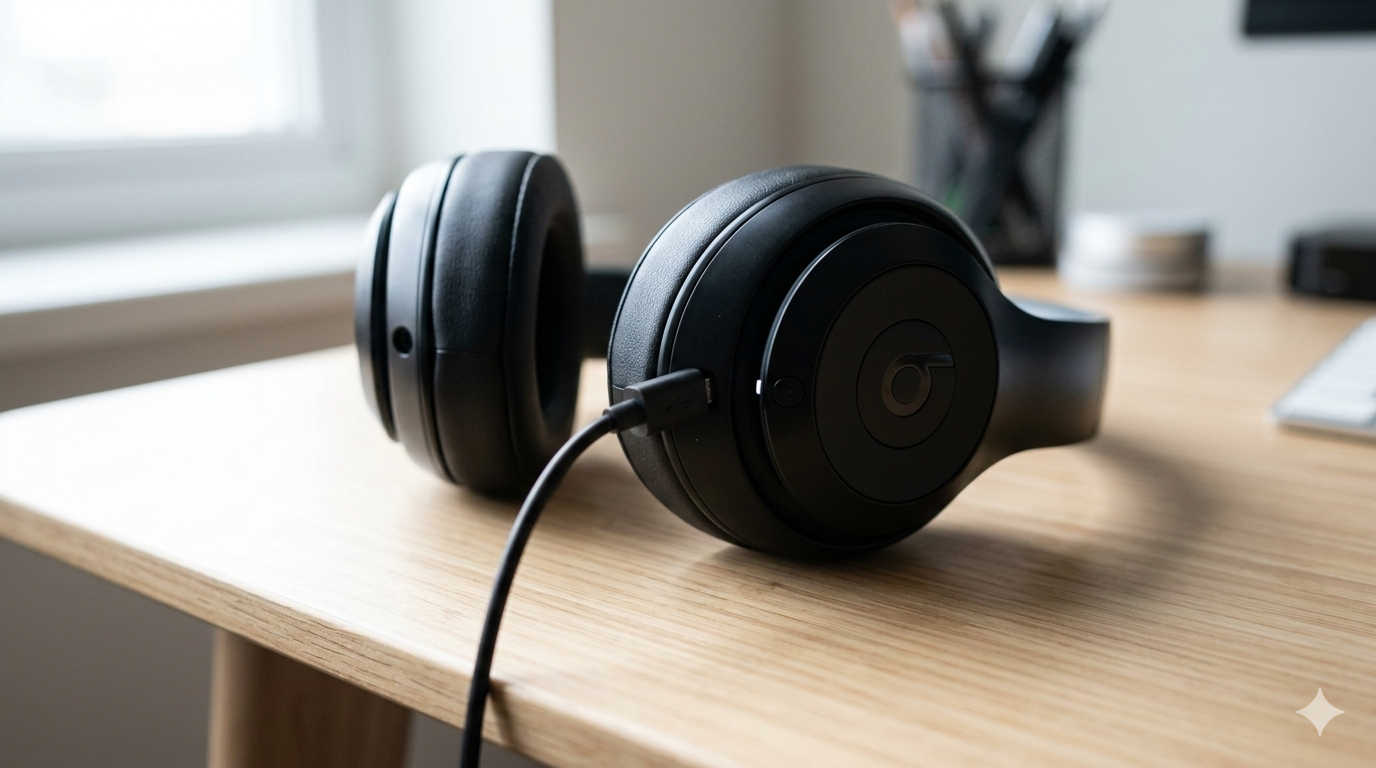
If your Beats headphones won’t charge, you’re not alone. Charging issues are one of the most common problems users experience with wireless audio devices. Whether you own Beats Solo, Beats Studio, Powerbeats, Beats Fit Pro, or Beats Flex, the root causes are usually similar — and in many cases, easy to fix at home.
This guide walks you through every proven solution step by step. By the end, you’ll understand why your Beats headphones are not charging and exactly what to do to fix the problem safely.
Why Your Beats Headphones Are Not Charging
Before jumping into solutions, it’s important to understand what might be causing the issue. Charging failures typically fall into one of these categories:
- Faulty or damaged charging cable
- Weak or incompatible power adapter
- Dirty charging contacts or ports
- Fully drained battery that needs time to respond
- Software or firmware glitch
- Internal battery degradation
- Physical damage from drops or moisture
The good news is that most of these problems can be resolved without professional repair.
Step 1: Check the Charging Cable and Adapter First
One of the most overlooked causes of charging issues is a faulty cable. Even if a cable looks fine on the outside, internal wires can break over time.
What to do:
- Use the original cable that came with your Beats headphones if possible.
- Inspect the cable carefully for bends, frays, exposed wires, or loose connectors.
- Try a different charging cable that you know works properly.
- Switch to a different wall adapter.
Avoid charging from low-powered USB ports such as keyboards, TVs, or older laptops. Use a wall adapter that provides at least 5V output. Insufficient power can prevent your headphones from charging properly.
If your Beats start charging with a different cable or adapter, you’ve found the problem.
Step 2: Inspect and Clean the Charging Port
Dust, lint, and debris can accumulate inside the charging port and block proper connection. This is especially common if you carry your headphones in a backpack or pocket.
To clean safely:
- Shine a flashlight into the charging port to check for dirt buildup.
- Use a dry, soft brush or wooden toothpick to gently remove debris.
- Avoid using metal objects, which can damage internal connectors.
If you see residue on metal contacts, lightly clean them using a cotton swab slightly dampened with isopropyl alcohol. Allow everything to dry completely before plugging the cable back in.
A blocked port is one of the most common reasons Beats headphones won’t charge.
Step 3: Leave the Headphones Plugged In Longer
If your Beats battery has completely drained, it may not show a charging indicator immediately. In some cases, it can take 10 to 20 minutes before the LED light turns on.
Plug your headphones into a reliable power source and leave them undisturbed for at least 30 minutes. If the battery was deeply discharged, patience may solve the problem.
Step 4: Reset Your Beats Headphones
Software glitches can prevent the charging system from responding properly. A reset often restores normal function.
Here’s how to reset common Beats models:
For Beats Solo or Studio Wireless:
- Hold the power button for about 10 seconds.
- Wait for the LED to flash.
- Release the button and try charging again.
For Powerbeats models:
- Hold the power button and volume down button together for about 10 to 15 seconds.
- Release when the LED blinks.
- Place the earbuds back in the case and connect the charger.
After resetting, plug them in and check for charging indicators.
Step 5: Make Sure the Charging Case Has Power (For True Wireless Models)
If you use Powerbeats Pro, Beats Fit Pro, or similar true wireless earbuds, remember that the earbuds charge through the case.
Common mistakes include:
- Charging earbuds while the case battery is empty
- Not seating the earbuds properly in the case
- Dirty charging pins inside the case
Open the case and check its LED indicator. If the case itself isn’t charging, troubleshoot the case before the earbuds.
Clean the charging pins inside the case carefully with a dry cotton swab if needed.
Step 6: Test a Different Power Source
Sometimes the issue isn’t the headphones at all — it’s the outlet.
Try charging your Beats using:
- A different wall outlet
- A power bank
- A different charging brick
- A reliable laptop USB port
If they charge successfully on another power source, the original outlet or adapter may be defective.
Step 7: Check for Firmware Updates
Certain Beats models support firmware updates through the Beats app or when connected to an Apple device.
Outdated firmware can sometimes interfere with power management.
To check:
- Connect your Beats to your phone.
- Open Bluetooth settings or the Beats app.
- Look for available updates.
- Install updates if available.
After updating, restart your headphones and test charging again.
Step 8: Look for Physical Damage
If your Beats were recently dropped, exposed to moisture, or overheated, internal damage may be preventing charging.
Signs of possible hardware damage include:
- Bent charging port
- Corrosion inside the port
- Overheating while plugged in
- Cracks near connection points
If you notice any of these issues, stop attempting to charge the headphones to avoid further damage.
Step 9: Consider Battery Wear and Tear
Rechargeable batteries degrade over time. If your Beats headphones are several years old and no longer hold a charge, the battery may have reached the end of its lifespan.
Common signs of battery failure:
- Headphones only work while plugged in
- Battery drains extremely quickly
- No response even after long charging attempts
In this case, a battery replacement may be necessary. Depending on the model and repair cost, replacement might be more practical.
Step 10: Try Wireless Charging (If Supported)
Some newer Beats models support wireless charging.
If your wired connection doesn’t work:
- Place the case on a compatible wireless charging pad.
- Ensure the charging pad is powered and functioning.
- Watch for the charging indicator.
If wireless charging works but cable charging does not, the port itself may be damaged.
Advanced Troubleshooting for Persistent Charging Problems
If none of the above solutions work, consider these additional checks:
Disable Bluetooth temporarily
Turn off Bluetooth on connected devices and power off the headphones before charging. Occasionally, active connections interfere with charging behavior.
Test with another compatible device
If you normally charge from a laptop, try a dedicated wall charger instead.
Check for overheating
If the headphones feel warm while charging, unplug them immediately. Overheating can indicate internal battery or circuit issues.
When to Contact Support
If your Beats headphones still won’t charge after trying every step above, it may be time for professional service.
Contact official support if:
- Your headphones are still under warranty
- You suspect internal battery failure
- There is visible damage to internal components
- The device does not respond to resets
Professional repair or replacement may be the safest solution at this point.
How to Prevent Charging Problems in the Future
Preventative care can significantly extend the lifespan of your Beats headphones.
Keep charging ports clean
Inspect and clean the charging port once every few weeks to prevent debris buildup.
Avoid full battery drain
Recharge before the battery reaches 0 percent. Deep discharges can shorten battery life over time.
Use quality charging accessories
Cheap or uncertified chargers may deliver unstable voltage and damage batteries.
Store properly
Keep your headphones in their case when not in use to prevent dust and accidental damage.
Keep away from moisture
Sweat and humidity can cause corrosion inside charging ports and connectors.
Frequently Asked Questions
Why are my Beats plugged in but not charging?
The most common causes are a faulty cable, dirty charging port, or completely drained battery. Start by switching cables and cleaning the port.
How long should Beats take to charge?
Most models take between 1 to 2 hours for a full charge. A completely drained battery may take 15 to 30 minutes before showing a charging light.
Can a dead Beats battery be replaced?
Yes, in many cases the battery can be replaced by a repair technician, although costs vary depending on the model.
Why is there no charging light?
This often indicates a power delivery issue, damaged cable, or internal battery failure.
Final Thoughts
When your Beats headphones are not charging, it can feel frustrating — especially if you depend on them daily. Fortunately, most charging problems are caused by simple issues like dirty ports, faulty cables, or minor software glitches.
By carefully following the troubleshooting steps in this guide, you can diagnose and fix the issue without rushing to replace your headphones. Start with the simplest solutions and work your way forward. In many cases, your Beats will be back to normal within minutes.
If the problem turns out to be hardware-related, professional repair or replacement may be necessary. Either way, taking the time to troubleshoot properly helps you avoid unnecessary expense and ensures your headphones last as long as possible.