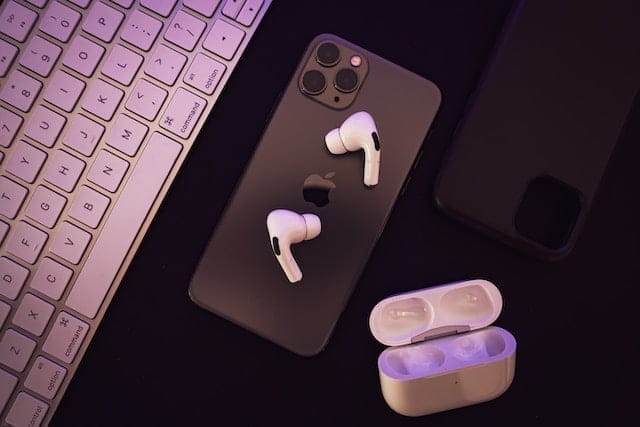
AirPods are among the most popular wireless earbuds in the world. Many people use them with their phones every day, but fewer users realize that they also work extremely well with laptops. Whether you want to attend online classes, join video meetings, watch movies, or listen to music while working, connecting AirPods to a laptop can make the experience more convenient and enjoyable.
The good news is that pairing AirPods with a laptop is usually quick and straightforward. Because AirPods rely on Bluetooth technology, they can connect to almost any modern laptop, including Windows devices and MacBooks.
In this detailed guide, you’ll learn exactly how to connect AirPods to your laptop, whether you’re using Windows or macOS. We’ll also cover troubleshooting steps, compatibility tips, and helpful FAQs so you can get the best possible experience.
Can You Connect AirPods to a Laptop?
Yes, AirPods can connect to nearly any laptop that supports Bluetooth. Although Apple designed AirPods primarily for iPhones and iPads, they function like standard Bluetooth headphones. That means they can pair with Windows laptops, MacBooks, Chromebooks, and even some desktop computers.
Once connected, AirPods work just like regular wireless headphones. You can use them for:
- Listening to music
- Watching movies and streaming videos
- Joining Zoom or Microsoft Teams meetings
- Online gaming
- Recording audio using the built-in microphone
- Attending online classes
The pairing process is slightly different depending on whether you use a Windows laptop or a MacBook.
Things to Check Before Connecting AirPods to a Laptop
Before you begin the pairing process, it’s important to make sure everything is ready. This will prevent connection problems and make the process smoother.
Make Sure Bluetooth Is Enabled
AirPods connect using Bluetooth. Most modern laptops include built-in Bluetooth, but older models may require a Bluetooth adapter.
To check, open your laptop’s settings and confirm that Bluetooth is turned on.
Charge Your AirPods
Low battery can interrupt the pairing process. Make sure your AirPods and charging case have enough power before connecting.
Update Your Laptop
Outdated system software can sometimes cause Bluetooth connection issues. Installing the latest system updates can help ensure better compatibility.
Keep Devices Close Together
For the initial pairing process, keep the AirPods and laptop within a few feet of each other.
How to Put AirPods in Pairing Mode
Before connecting AirPods to any new device, you must activate pairing mode.
Follow these simple steps:
- Place both AirPods in the charging case.
- Open the lid of the charging case.
- Locate the small setup button on the back of the case.
- Press and hold the button for several seconds.
- Wait until the LED indicator starts flashing white.
The flashing white light indicates that the AirPods are ready to connect to a new device.
How to Connect AirPods to a Windows Laptop
If you are using a Windows laptop, the connection process takes place through the Bluetooth settings menu.
Step 1: Open Windows Settings
Press Windows + I on your keyboard to open the settings panel.
From there, go to:
Bluetooth & Devices
Make sure the Bluetooth toggle is turned on.
Step 2: Add a New Device
Click the Add Device button.
A new window will appear asking what type of device you want to connect. Choose Bluetooth.
Your laptop will start scanning for nearby Bluetooth devices.
Step 3: Activate AirPods Pairing Mode
Open your AirPods case and press the button on the back until the LED light flashes white.
This makes the AirPods visible to your laptop.
Step 4: Select Your AirPods
After a moment, your AirPods should appear in the list of available devices.
Click the AirPods name and select Connect.
Within a few seconds, Windows will complete the pairing process.
Step 5: Set AirPods as the Audio Output
Sometimes Windows connects the AirPods but still sends sound through the laptop speakers.
To fix this:
- Click the speaker icon on the taskbar.
- Open the audio output menu.
- Select AirPods as the output device.
Now all laptop audio should play through the AirPods.
How to Connect AirPods to a MacBook
If you’re using a MacBook, the process is even easier because AirPods are designed to integrate seamlessly with Apple devices.
Automatic Connection
If your AirPods are already connected to your iPhone using the same Apple ID, they may automatically appear on your Mac.
To use them:
- Open the AirPods case near the MacBook.
- Click the sound icon in the menu bar.
- Select AirPods from the list.
Your Mac will connect instantly.
Manual Bluetooth Connection
If the automatic connection doesn’t work, you can pair them manually.
- Click the Apple menu in the top corner.
- Open System Settings.
- Select Bluetooth.
- Turn Bluetooth on if it’s disabled.
Next:
- Open the AirPods case.
- Press and hold the setup button on the back.
- Wait for the LED light to flash white.
Your AirPods should appear in the Bluetooth device list.
Click Connect, and the pairing will complete.
How to Reconnect AirPods to Your Laptop
Once AirPods have been paired with your laptop, reconnecting them later becomes much easier.
On Windows
- Open Bluetooth settings.
- Find AirPods in the list of paired devices.
- Click Connect.
On Mac
- Click the Bluetooth icon in the menu bar.
- Select AirPods.
Your laptop should reconnect automatically.
How to Disconnect AirPods from a Laptop
Sometimes you may want to disconnect your AirPods to use them with another device.
On Windows
- Open Bluetooth settings.
- Locate your AirPods.
- Click Disconnect or Remove Device.
On Mac
- Open the Bluetooth menu.
- Find your AirPods.
- Choose Disconnect.
Common Problems When Connecting AirPods to a Laptop
While the pairing process is usually smooth, occasional issues can occur. Understanding the most common problems can help you fix them quickly.
AirPods Not Appearing in the Device List
If your AirPods don’t appear when scanning for devices, they may not be in pairing mode.
Try these steps:
- Place the AirPods back in the case.
- Hold the setup button again until the LED flashes white.
- Restart Bluetooth on your laptop.
AirPods Connected but No Sound
This usually happens when the laptop continues using its built-in speakers.
Open the audio settings and manually select AirPods as the default output device.
AirPods Keep Disconnecting
Frequent disconnections can happen for several reasons:
- Low battery
- Bluetooth interference
- Distance between devices
- Outdated Bluetooth drivers
Keeping devices close together and fully charged often solves this issue.
Microphone Not Working
AirPods include a built-in microphone, but sometimes the laptop doesn’t automatically select it.
To fix this:
- Open your laptop’s sound settings.
- Find the input device section.
- Select AirPods as the microphone.
This is especially important for video conferencing apps.
How to Reset AirPods if They Won’t Connect
If connection problems persist, resetting your AirPods can help.
Follow these steps:
- Put the AirPods in the charging case.
- Close the lid and wait about 30 seconds.
- Open the lid again.
- Press and hold the setup button on the back for about 15 seconds.
- Release the button when the LED light flashes amber and then white.
After resetting, you can repeat the pairing process from the beginning.
Tips for Better AirPods Performance on a Laptop
To get the best possible experience, keep these practical tips in mind.
Keep Bluetooth Drivers Updated
Updating your laptop’s Bluetooth drivers can improve connection stability.
Stay Within Bluetooth Range
Bluetooth typically works best within about 30 feet (10 meters). Walls and electronic interference may reduce this range.
Keep the AirPods Charged
Low battery levels can cause connection issues and audio interruptions.
Reduce Interference
Too many wireless devices nearby can affect Bluetooth performance. If possible, reduce interference from other electronics.
Best AirPods Models for Laptop Users
All AirPods models work with laptops, but some offer additional features that may enhance your experience.
AirPods (2nd Generation)
This model provides reliable sound quality and solid battery life. It’s an affordable option for users who want simple wireless audio for everyday tasks.
AirPods (3rd Generation)
These AirPods offer improved sound quality, spatial audio support, and better battery life compared to earlier models.
AirPods 4
AirPods Pro include active noise cancellation and transparency mode. These features are especially useful for working in noisy environments or during travel.
AirPods Max
AirPods Max are Apple’s premium over-ear headphones. They deliver exceptional audio quality and noise cancellation, making them ideal for professional audio work or immersive entertainment.
Advantages of Using AirPods with a Laptop
Using AirPods with a laptop offers several clear benefits.
Wireless Convenience
You don’t need cables or adapters. Just pair the earbuds and start listening.
Comfortable for Long Use
AirPods are lightweight and designed for extended wear, which is helpful during long meetings or study sessions.
Built-in Microphone
The integrated microphone works well for video calls and online classes.
Easy Device Switching
AirPods can quickly reconnect to devices you’ve used before, making it easy to switch between your laptop and phone.
Limitations When Using AirPods on Windows
Although AirPods work well with Windows laptops, some Apple-specific features may not function fully.
Examples include:
- Automatic device switching
- Siri voice commands
- Some spatial audio features
- Battery status pop-ups
These features are designed primarily for Apple devices.
However, the core functionality—audio playback and microphone use—works perfectly fine on Windows.
Frequently Asked Questions
Can AirPods connect to any laptop?
Yes. As long as your laptop supports Bluetooth, it can connect to AirPods.
Why won’t my AirPods connect to my laptop?
Common causes include disabled Bluetooth, AirPods not being in pairing mode, or outdated Bluetooth drivers.
Can I use AirPods for Zoom or Teams meetings?
Yes. AirPods work well with video conferencing apps like Zoom, Google Meet, and Microsoft Teams.
How far can AirPods be from a laptop?
Bluetooth connections typically work best within about 30 feet, though obstacles may reduce this distance.
Do AirPods work better with Mac than Windows?
AirPods integrate more smoothly with Apple devices, but they still function well on Windows laptops for audio and calls.
Final Thoughts
Connecting AirPods to a laptop is simple once you understand the pairing process. Because AirPods rely on Bluetooth technology, they can connect to almost any modern laptop, including Windows PCs and MacBooks.
The key steps involve activating pairing mode, enabling Bluetooth on your laptop, and selecting the AirPods from the available devices list. After the initial setup, reconnecting them becomes fast and effortless.
If you encounter connection issues, most problems can be solved by resetting the AirPods, updating drivers, or adjusting audio settings.
Whether you’re attending meetings, studying online, watching movies, or listening to music while working, AirPods can be a convenient and reliable wireless audio solution for laptop users.
Featured Photo by The Average Tech Guy on Unsplash