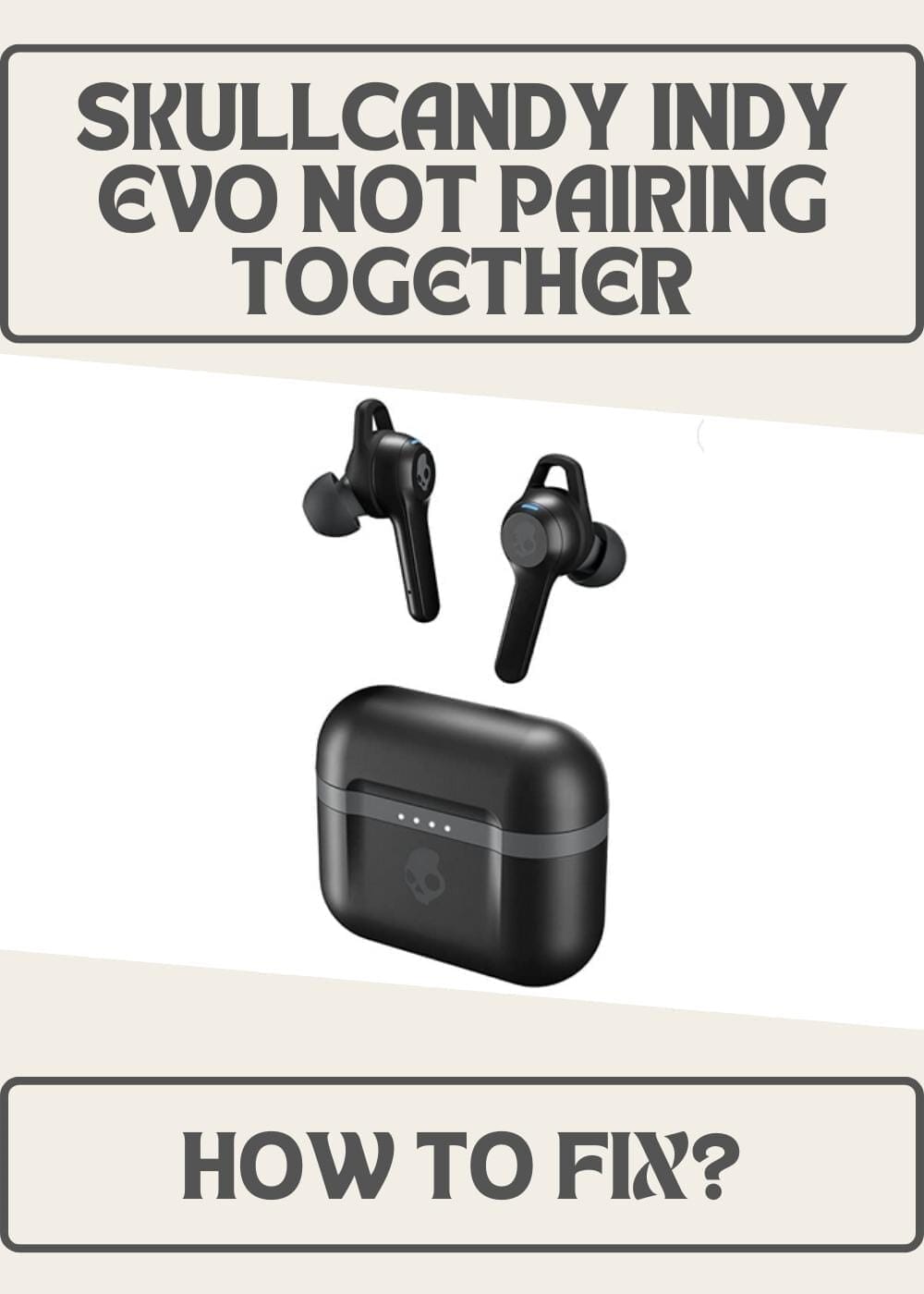
There’s nothing more frustrating than taking your Skullcandy Indy Evo earbuds out of the charging case only to discover that they won’t work together. In many cases, one earbud connects normally while the other remains disconnected, flashes its LED, or produces no sound at all.
The good news is that this issue is surprisingly common and is usually caused by a synchronization problem rather than a faulty earbud. Whether the earbuds lost their connection after pairing with another device or a Bluetooth glitch interrupted the setup process, most users can solve the problem in just a few minutes.
This guide explains why Skullcandy Indy Evo earbuds stop pairing together and walks you through the most effective solutions to restore normal operation.
Why Are Skullcandy Indy Evo Earbuds Not Pairing Together?
Unlike traditional wired headphones, true wireless earbuds communicate with both your phone and each other. If that communication is interrupted, the earbuds may lose synchronization, causing only one earbud to connect.
This problem is commonly triggered by interrupted pairing attempts, switching between multiple devices, outdated Bluetooth information stored on your phone, uneven battery levels, or temporary software glitches. Occasionally, poor charging contact or a drained charging case can also prevent one earbud from functioning correctly.
Fortunately, most of these issues can be resolved without replacing the earbuds.
1. Make Sure Both Earbuds Are Fully Charged
Before trying anything else, confirm that both earbuds have enough battery power. Even if one earbud appears to work, the other may not have enough charge to complete the synchronization process.
Place both earbuds inside the charging case and leave them there for at least 30 minutes. Check that the charging indicators illuminate when the earbuds are inserted. If one earbud doesn’t appear to charge, gently clean the charging contacts on both the earbud and the case using a dry microfiber cloth.
Once both earbuds are sufficiently charged, remove them together and see if they reconnect automatically.
2. Forget the Existing Bluetooth Connection
Old or corrupted Bluetooth pairing records can prevent the earbuds from reconnecting properly.
Open your phone’s Bluetooth settings, locate Skullcandy Indy Evo, and select the option to forget or remove the device. After deleting the saved connection, avoid pairing the earbuds immediately. Instead, continue with the reset process below to establish a fresh connection.
3. Reset the Skullcandy Indy Evo Earbuds
Resetting the earbuds is the most effective solution when only one earbud connects or the earbuds refuse to pair together.
Start by removing both earbuds from the charging case. Power them off if they remain on, then perform the factory reset according to Skullcandy’s reset procedure. Once the reset is complete, return both earbuds to the charging case for several seconds before removing them again.
During startup, the earbuds should automatically reconnect with each other before entering Bluetooth pairing mode. When they appear in your phone’s Bluetooth menu, reconnect them as a new device.
If the reset completes successfully, audio should play through both earbuds simultaneously.
4. Restart Your Smartphone
Sometimes the earbuds are not the source of the problem. Temporary Bluetooth errors on your smartphone can interfere with wireless connections.
Restart your phone completely, enable Bluetooth again, and then try reconnecting the earbuds. This simple step often clears minor connection problems that develop after long periods without restarting the device.
5. Keep the Earbuds Close During Pairing
The left and right earbuds need to establish a stable connection with each other before they communicate with your phone.
When pairing, keep both earbuds close together. Removing one significantly earlier than the other or placing them far apart during setup can interrupt the synchronization process.
If possible, remove both earbuds from the charging case at the same time.
6. Reduce Bluetooth Interference
Nearby wireless devices occasionally interfere with Bluetooth pairing.
If you’re surrounded by multiple Bluetooth accessories such as speakers, smartwatches, wireless keyboards, or fitness trackers, temporarily disconnect them before attempting to pair your Indy Evo earbuds again.
Once the earbuds reconnect successfully, you can reconnect your other Bluetooth devices.
7. Check for Charging Problems
If one earbud consistently fails to connect, it may not actually be charging.
Inspect both earbuds and the charging case for dust, lint, or debris covering the charging pins. Even a small amount of dirt can prevent proper charging, causing one earbud to remain powered off.
Cleaning the contacts carefully often restores normal charging and synchronization.
8. Update the Earbuds’ Firmware
If firmware updates are available for your Skullcandy earbuds, installing the latest version can improve Bluetooth performance and resolve known connectivity issues.
Firmware updates often include bug fixes that improve wireless stability and device compatibility. After updating, repeat the pairing process to ensure the changes take effect.
9. Test Each Earbud Separately
If the previous fixes don’t solve the problem, determine whether the issue affects one specific earbud.
Try powering on each earbud individually. Check whether each one charges normally, displays its LED indicator, and can establish a Bluetooth connection. If one earbud never powers on or consistently fails to charge, the problem may be hardware-related rather than a synchronization issue.
At that point, professional support or a warranty claim may be necessary.
When Should You Contact Skullcandy Support?
Most pairing problems can be fixed with a reset, but there are situations where additional assistance is needed.
Contact Skullcandy support if one earbud never charges, refuses to turn on, repeatedly disconnects after pairing, or fails to reset despite following the recommended troubleshooting steps. Physical damage or exposure to moisture may also require repair or replacement.
If your earbuds are still covered by warranty, you may be eligible for a replacement unit.
Tips to Prevent Pairing Problems in the Future
A few simple habits can help prevent synchronization issues from returning.
Always remove both earbuds from the charging case together instead of using only one during the initial connection. Store the earbuds in their charging case when they’re not in use and keep the case adequately charged. Avoid repeatedly pairing the earbuds with multiple phones, tablets, or computers unless necessary, as frequent switching can occasionally cause synchronization problems.
Cleaning the charging contacts periodically also helps maintain reliable charging and connectivity.
Frequently Asked Questions
Why is only one Skullcandy Indy Evo earbud working?
This usually happens because the earbuds have lost synchronization with each other. Performing a factory reset and pairing them again typically restores normal functionality.
Can a low battery prevent the earbuds from pairing together?
Yes. If one earbud has little or no charge, it may not communicate with the other earbud during the pairing process, resulting in only one side connecting.
Does forgetting the Bluetooth device erase my earbuds?
No. Removing the saved Bluetooth connection only deletes the pairing information stored on your phone. It does not reset or erase the earbuds themselves.
Why do my earbuds keep disconnecting after pairing?
Repeated disconnections can be caused by Bluetooth interference, outdated firmware, battery issues, or a developing hardware fault. If the issue continues after resetting the earbuds, contacting Skullcandy support is recommended.
Final Thoughts
When your Skullcandy Indy Evo earbuds stop pairing together, the issue is usually caused by a lost synchronization rather than a defective product. In most cases, charging both earbuds, removing the old Bluetooth connection, resetting the earbuds, and pairing them again is enough to restore normal operation.
If you’ve worked through every troubleshooting step and the problem persists, it’s worth checking for hardware issues or contacting Skullcandy support for further assistance. Taking a few minutes to troubleshoot can often save you from replacing earbuds that are otherwise working perfectly.