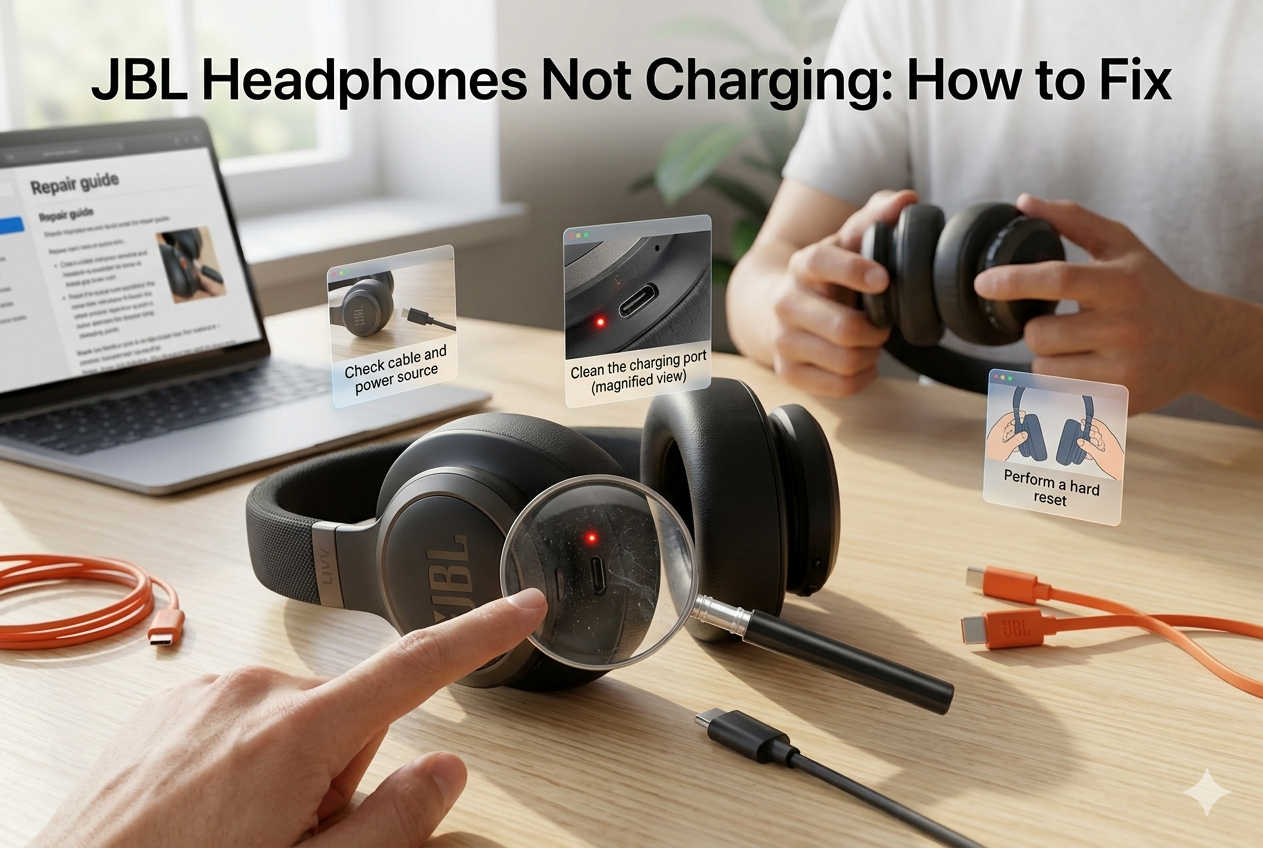
Few things are more frustrating than reaching for your JBL headphones only to discover they won’t charge. Whether you’re preparing for a workout, commuting to work, or relaxing with your favorite playlist, a charging problem can quickly interrupt your plans.
The good news is that a charging issue doesn’t always mean your headphones are permanently damaged. In many cases, the problem can be resolved with a few simple troubleshooting steps. From faulty charging cables to software glitches and worn-out batteries, there are several possible causes—and most are easier to diagnose than you might think.
This guide explains why JBL headphones stop charging, how to identify the root cause, and the most effective solutions to get them working again.
Why Are Your JBL Headphones Not Charging?
Charging issues can occur for both hardware and software reasons. Understanding the most common causes will help you troubleshoot more efficiently.
Some of the most frequent reasons include:
- Damaged or worn charging cable
- Faulty wall adapter or USB port
- Dirt or debris inside the charging port
- Battery calibration issues
- Software or firmware bugs
- Moisture or water damage
- Battery degradation due to age
- Internal hardware failure
- Loose or damaged charging connector
Fortunately, many of these issues can be fixed without professional repair.
Check the Charging Cable First
One of the simplest explanations is often the correct one. Charging cables experience constant bending, twisting, and everyday wear, which can damage the wires inside even if the outer insulation looks intact.
Before trying more advanced fixes, connect your headphones using another compatible USB cable. If possible, use the original cable that came with the headphones or a high-quality certified replacement.
If the headphones begin charging with a different cable, you’ve found the problem.
Try Another Charger or Power Source
Sometimes the charger—not the headphones—is responsible.
A damaged wall adapter, low-powered USB hub, or faulty laptop USB port may not provide enough power to charge your headphones properly.
Try charging from:
- A different wall adapter
- Another USB port on your computer
- A reliable power bank
- A different electrical outlet
Testing multiple power sources helps eliminate charging equipment as the cause.
Clean the Charging Port Carefully
Pocket lint, dust, and debris can accumulate inside the charging port over time, preventing the cable from making a secure connection.
Before cleaning, turn the headphones off and disconnect the charger.
Inspect the port using a flashlight. If you notice dust or lint, remove it gently with compressed air or a soft anti-static brush. A wooden toothpick can also help remove stubborn debris, but avoid using metal objects that could damage the connector pins.
Once the port is clean, reconnect the charger and check whether the charging indicator appears.
Check the Charging Indicator Light
The LED charging light provides valuable clues about what’s happening.
Depending on your JBL model, you may notice:
- No light at all
- A solid charging light
- A blinking red indicator
- A flashing white light
- A light that turns off immediately
A completely inactive LED may indicate a charging accessory problem, a depleted battery, or an internal hardware fault.
Let the Battery Recover
If the battery has been fully discharged for an extended period, it may require extra time before charging begins.
Instead of unplugging and reconnecting the cable repeatedly, leave the headphones connected to a reliable charger for at least 30 to 60 minutes.
Some batteries require a short recovery period before the charging circuitry becomes active again.
Restart or Reset Your JBL Headphones
Like smartphones and other electronic devices, wireless headphones can occasionally experience temporary software glitches.
A reset often restores normal operation.
Although reset methods vary between JBL models, a common approach is to:
- Turn the headphones off.
- Press and hold the Power button for around 20 to 30 seconds.
- Release the button.
- Wait about one minute.
- Connect the charger again.
If your specific model supports a factory reset, follow the instructions provided in its user manual.
Avoid Using High-Power Fast Chargers
Many modern smartphone chargers deliver significantly more power than older USB adapters.
While most JBL headphones regulate charging automatically, using a standard 5V USB charger is generally the safest option.
Whenever possible:
- Use certified charging accessories.
- Avoid damaged adapters.
- Stick to reputable brands.
- Avoid extremely high-wattage chargers unless recommended.
Stable charging is usually more important than charging speed.
Look for Signs of Moisture Damage
Even water-resistant headphones aren’t completely immune to moisture-related charging issues.
Sweat, rain, or accidental spills may interfere with the charging contacts.
Possible warning signs include:
- Corrosion around the charging port
- White or green residue
- Intermittent charging
- Excessive heat while charging
If moisture is suspected, stop charging immediately and allow the headphones to dry naturally for 24 to 48 hours before trying again.
Never use direct heat sources like hair dryers.
Update the Firmware
Firmware updates don’t just add new features—they often fix charging, battery, and connectivity issues.
If your headphones still power on occasionally, connect them to the JBL Headphones app and check whether a firmware update is available.
Installing the latest software can resolve bugs affecting battery performance.
Inspect the Charging Port for Physical Damage
If the cable feels unusually loose or only charges when held at a certain angle, the charging connector itself may be damaged.
Inspect the port for:
- Bent connector pins
- Cracks
- Loose housing
- Visible internal damage
Physical damage typically requires professional repair.
Consider Battery Wear
Rechargeable lithium-ion batteries gradually lose capacity over time.
After hundreds of charging cycles, battery performance naturally declines.
Common symptoms include:
- Charging very slowly
- Rapid battery drain
- Refusing to charge fully
- Random shutdowns
- Only working while plugged in
If your JBL headphones are several years old, battery replacement may be the most effective long-term solution.
Check for Overheating
Charging protection systems may temporarily disable charging if the headphones become too hot.
If they’ve been left in direct sunlight or inside a hot vehicle, allow them to cool to room temperature before attempting to charge again.
Likewise, extremely cold environments can also affect battery performance.
Inspect the Headphones for Physical Damage
Accidental drops can loosen internal components even when exterior damage appears minimal.
Carefully examine the headphones for:
- Cracked housing
- Loose hinges
- Broken buttons
- Rattling sounds
- Bent charging ports
Internal hardware damage often requires professional servicing.
Try Charging Through a Computer
Charging through a computer USB port can help determine whether your wall adapter is causing the issue.
Although charging may be slower, this method provides another way to test whether the headphones themselves are functioning correctly.
If charging works from a computer but not a wall charger, replacing the adapter is likely the best solution.
Don’t Interrupt the Charging Process
Repeatedly unplugging and reconnecting the cable every few seconds can make troubleshooting more difficult.
Instead, plug the headphones into a reliable charger and leave them connected undisturbed for at least one hour before checking the battery status.
When Should You Contact JBL Support?
If you’ve tried every troubleshooting step and the headphones still refuse to charge, professional assistance may be necessary.
Contact JBL support if:
- The charging port is physically damaged.
- The headphones became wet and no longer respond.
- The battery no longer holds any charge.
- The headphones are still covered by warranty.
- None of the recommended fixes solved the problem.
Opening the headphones yourself can void the warranty and may cause additional damage.
Tips to Prevent Future Charging Problems
A few simple maintenance habits can significantly extend your headphones’ lifespan.
Follow these best practices:
- Keep the charging port clean.
- Store the headphones in a protective case.
- Avoid exposing them to excessive heat or moisture.
- Use high-quality charging cables.
- Don’t leave the battery completely discharged for long periods.
- Disconnect the charger after the battery reaches full charge.
- Install firmware updates whenever they’re available.
Proper care helps maintain battery health and reduces the risk of future charging issues.
Recommended Accessories to Improve Charging Reliability
While accessories won’t fix an internal hardware fault, using quality charging equipment can prevent many common charging problems.
Consider using:
- An original JBL charging cable or a certified USB replacement cable.
- A reputable 5V USB wall charger from a trusted manufacturer.
- A high-quality surge protector to guard against electrical fluctuations.
- A protective carrying case to reduce wear on the charging port during travel.
- USB port cleaning tools designed for delicate electronics.
Avoid very cheap, uncertified charging accessories, as inconsistent power delivery may shorten battery life over time.
Frequently Asked Questions
Why won’t my JBL headphones charge even though the cable works?
The issue could be a dirty charging port, a faulty power adapter, outdated firmware, battery failure, or internal hardware damage. Testing multiple charging accessories can help narrow down the cause.
How long does it take to fully charge JBL headphones?
Most JBL wireless headphones reach a full charge within two to three hours, depending on the model and battery capacity.
Can a completely dead JBL battery be revived?
Sometimes. If the battery has been deeply discharged, leaving the headphones connected to a charger for 30 to 60 minutes may allow the charging system to recover. If there’s still no response, the battery may need replacement.
Why do my headphones only charge when I move the cable?
This usually indicates either a worn charging cable or a damaged charging port. Try another cable first. If the problem continues, the charging connector may require repair.
Is it safe to charge JBL headphones overnight?
Modern JBL headphones include charging protection circuitry, but regularly leaving them plugged in overnight isn’t ideal. Disconnecting them once fully charged can help maximize long-term battery health.
Final Thoughts
A JBL headset that won’t charge can be inconvenient, but the solution is often simpler than it first appears. In many cases, replacing a faulty charging cable, cleaning the charging port, using a different power adapter, or performing a reset is enough to restore normal charging.
If none of the troubleshooting steps work, the problem may involve a worn battery or internal hardware fault that requires professional repair or replacement. Before assuming the worst, work through each solution methodically. Identifying the exact cause not only saves time and money but can also extend the lifespan of your JBL headphones.
By using quality charging accessories, keeping the charging port clean, and following good battery care practices, you can reduce the chances of experiencing charging problems in the future and enjoy reliable performance from your headphones for years to come.