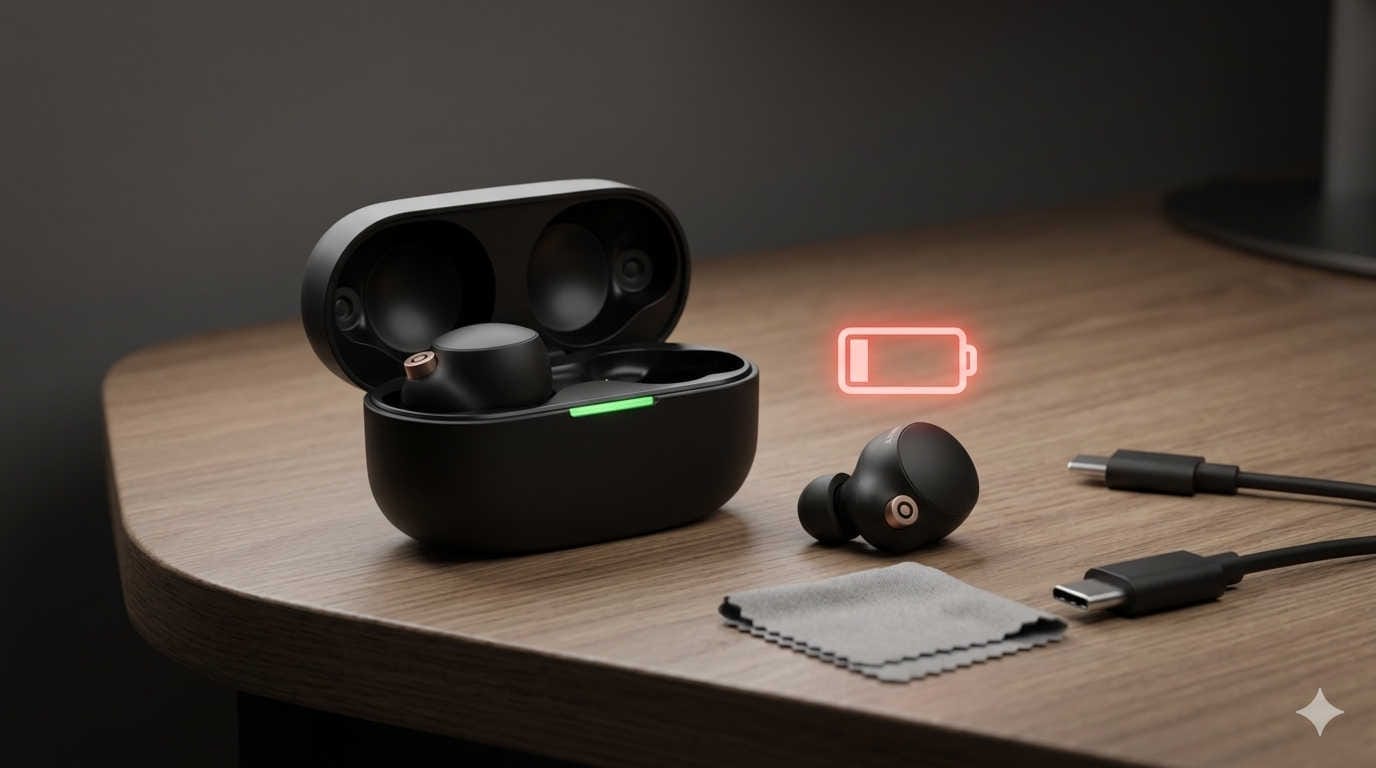
The Sony WF‑1000XM4 is widely considered one of the best premium wireless earbuds ever released. With powerful noise cancellation, rich audio quality, and long battery life, it quickly became a favorite among commuters, travelers, and music enthusiasts.
However, even high-end earbuds can develop issues over time. One of the most common complaints users encounter is that the Sony WF-1000XM4 earbuds or charging case stop charging. Sometimes the earbuds remain at 0%, one side won’t charge, or the case itself refuses to power up.
If you are facing this problem, don’t assume the earbuds are permanently damaged. In many cases, charging issues are caused by simple problems such as dirty contacts, incorrect placement in the case, or a faulty charging cable.
This comprehensive guide explains why Sony WF-1000XM4 earbuds may stop charging and how to fix the issue step by step. By following these troubleshooting methods, you can usually restore normal charging without replacing the earbuds.
How the Sony WF-1000XM4 Charging System Works
Before trying to fix the problem, it helps to understand how the charging system works.
The WF-1000XM4 relies on two batteries:
- Charging Case Battery – stores power and recharges the earbuds.
- Earbud Batteries – small lithium batteries inside each earbud.
When you place the earbuds in the case, metal contacts on the earbuds connect to spring-loaded pins inside the case. This connection transfers power from the case battery to the earbuds.
The charging case itself can be powered in two ways:
- USB-C cable charging
- Wireless charging using a Qi charging pad
Under normal conditions:
- The LED indicator lights up when charging begins.
- Earbuds reach a full charge in about 1.5 hours.
- The case can recharge the earbuds multiple times before needing to be plugged in.
If any part of this system fails, the earbuds may stop charging.
Signs Your Sony WF-1000XM4 Is Not Charging
Charging problems often show clear symptoms. You may notice one or more of the following:
- One earbud does not charge
- Both earbuds stay at 0% battery
- Charging case LED does not light up
- Case charges but earbuds do not
- Battery drains extremely fast
- Earbuds disconnect suddenly
These signs indicate that something is interrupting the charging process.
Why Sony WF-1000XM4 Earbuds Stop Charging
Understanding the cause helps you fix the problem faster. Below are the most common reasons.
Dirty Charging Contacts
Earbuds are exposed to sweat, dust, and earwax. Over time, this debris can accumulate on the metal contacts of the earbuds or the pins inside the case.
Even a thin layer of dirt can block the electrical connection required for charging.
Earbuds Not Sitting Correctly in the Case
If the earbuds are not aligned properly inside the case, the charging pins cannot make contact.
This problem can happen when:
- Ear tips are installed incorrectly
- Third-party ear tips are too large
- The earbuds are placed loosely in the case
Faulty Charging Cable or Adapter
Sometimes the problem is not the earbuds at all.
A damaged USB-C cable or low-quality charging adapter can prevent the case from charging properly.
Wireless Charging Misalignment
When using wireless charging pads, the case must sit in the correct position. Even a small misalignment can prevent charging.
Temperature Problems
Lithium batteries are sensitive to temperature.
Charging may fail if the earbuds are used or stored in very hot or very cold environments.
Software or Firmware Glitches
Occasionally the earbuds may develop a temporary software issue that affects battery detection or charging behavior.
A reset or firmware update often resolves these problems.
Battery Wear
After several years of use, lithium batteries begin to degrade.
Older earbuds may struggle to hold a charge or may stop charging altogether.
Step-by-Step Fixes for Sony WF-1000XM4 Not Charging
Start with the simplest fixes first. Most users resolve the issue within the first few steps.
Clean the Charging Contacts
This is the most common and easiest solution.
Charging pins inside the case must touch the metal contacts on the earbuds. Dirt can interrupt this connection.
How to clean them safely
- Remove the earbuds from the charging case.
- Use a dry microfiber cloth or cotton swab.
- Gently clean the metal contacts on the earbuds.
- Carefully clean the charging pins inside the case.
Avoid using liquids or compressed air because they can damage the internal components.
Once cleaned, place the earbuds back in the case and check if the charging light appears.
Reinsert the Earbuds Properly
Sometimes the earbuds simply are not positioned correctly.
Try the following:
- Remove both earbuds from the case.
- Close the case for about 10 seconds.
- Reinsert the earbuds carefully.
- Ensure each earbud sits flat inside the case.
If placed correctly, the LED indicator should light up immediately.
Charge the Case Fully
If the charging case battery is empty, the earbuds will not charge.
Plug the case into a charger and leave it connected for at least 30 minutes.
After charging, check whether the earbuds begin charging normally.
Try Another USB-C Cable
Charging cables can wear out over time.
Test the case with:
- a different USB-C cable
- another wall adapter
- a laptop USB port
If the case begins charging normally, the original cable was likely the problem.
A reliable option many users recommend is the Anker PowerLine III USB‑C Cable, known for its durability and consistent charging performance.
Check Wireless Charging Alignment
If you use a wireless charging pad, alignment is critical.
Place the case in the center of the charging pad and confirm that the LED indicator lights up.
If your current charger struggles to maintain alignment, consider a more stable pad like the Anker PowerWave Pad, which is designed for reliable Qi charging.
Allow the Earbuds to Reach Room Temperature
Charging may stop if the earbuds are too hot or too cold.
Move them to a normal indoor environment and wait 10–15 minutes before trying again.
This simple step often restores charging functionality.
Reset the Sony WF-1000XM4
A basic reset can clear temporary system glitches.
Steps:
- Place both earbuds inside the charging case.
- Close the lid.
- Wait about 30 seconds.
- Open the case again.
Reconnect the earbuds to your device and check if charging works.
Perform a Factory Reset
If the problem persists, try a full reset.
This will remove all Bluetooth pairings and restore the earbuds to their original settings.
Steps:
- Place both earbuds in the charging case.
- Touch and hold the sensors on both earbuds.
- Wait until the indicator lights flash.
- Release the sensors and reconnect to your device.
Many charging problems are resolved after initialization.
Inspect the Ear Tips
Large aftermarket ear tips can sometimes prevent the earbuds from sitting properly in the charging case.
If you recently replaced the ear tips, try switching back to the original ones.
Proper alignment inside the case is necessary for charging.
Update the Firmware
Firmware updates can fix battery reporting bugs and improve overall performance.
Open the **Sony Headphones Connect app and check for available updates.
Keeping the earbuds updated ensures stable charging behavior.
Replace the Charging Case
If the earbuds only charge when the case is plugged in, the case battery may be failing.
Signs of a faulty charging case include:
- the case drains extremely fast
- earbuds charge only when the case is connected to power
- LED indicators behave irregularly
In this situation, replacing the case may be the best solution.
Consider Battery Replacement
If your WF-1000XM4 earbuds are several years old, battery degradation may be unavoidable.
Symptoms include:
- very short battery life
- inconsistent charging
- earbuds refusing to reach full charge
Battery replacement is possible but may require professional repair.
Tips to Prevent Charging Problems
Preventive care can extend the life of your earbuds.
Clean the earbuds regularly
Wipe the charging contacts every few weeks to remove debris.
Store them in the case
Keeping the earbuds inside the case protects the contacts and maintains battery health.
Avoid extreme temperatures
Do not leave the earbuds in hot cars or freezing environments.
Use reliable charging accessories
Low-quality cables and chargers can cause unstable power delivery.
Frequently Asked Questions
Why is one Sony WF-1000XM4 earbud not charging?
Usually this happens because the charging contact on one earbud is dirty or misaligned. Cleaning the contacts and resetting the earbud in the case often fixes the issue.
Why does the charging case show no light?
If the LED indicator does not turn on, the case battery may be completely drained or the USB-C cable may be faulty.
Can wireless charging cause charging problems?
Yes. If the case is not positioned correctly on the charging pad, charging may stop or fail to start.
How long should Sony WF-1000XM4 take to charge?
The earbuds typically take about 1.5 hours to fully charge from empty when placed in the charging case.
When should I replace my Sony WF-1000XM4?
If cleaning, resetting, and firmware updates do not solve the charging issue, and the earbuds are several years old, battery degradation may require repair or replacement.
Final Thoughts
Charging issues with the Sony WF‑1000XM4 can be frustrating, especially when you rely on them daily for music, calls, or commuting. Fortunately, most charging problems are caused by minor issues that can be resolved quickly.
In many cases, simply cleaning the charging contacts, adjusting the earbuds in the case, or resetting the device will restore normal charging.
If the problem persists, checking cables, updating firmware, or replacing the charging case may provide a long-term solution.
With proper care and maintenance, your Sony earbuds can continue delivering excellent performance for years.