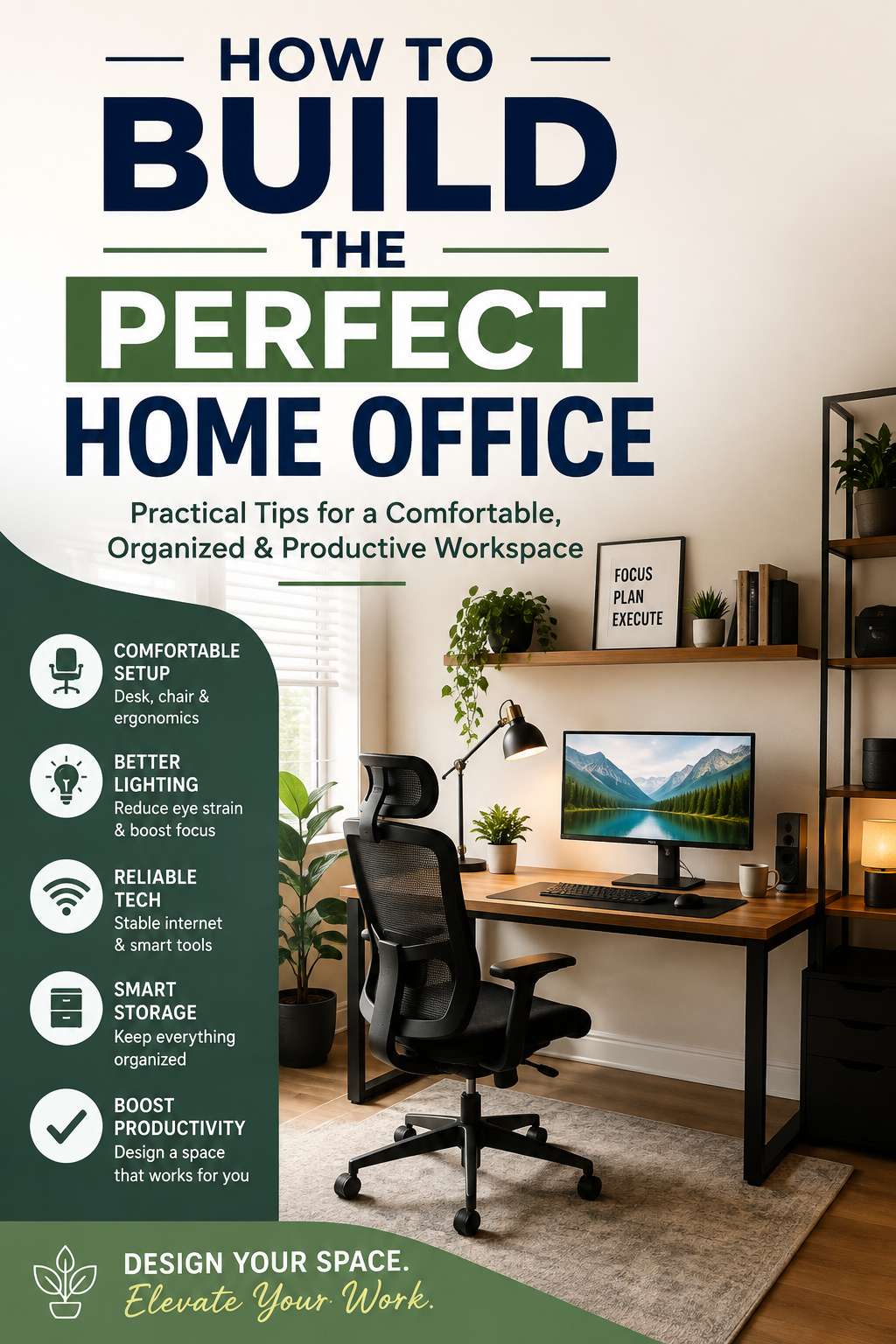
A well-designed home office can make working from home feel easier, more comfortable, and far less distracting. But creating a productive workspace does not mean spending a fortune on premium furniture or filling a room with gadgets.
The best home office is built around the way you actually work. A writer may need a spacious desk and quiet surroundings, while a designer may prioritize a large monitor and accurate lighting. Someone working from a small bedroom may need to focus on compact furniture and smart storage instead.
This guide explains how to build the perfect home office from the ground up, with practical advice on choosing the right location, desk, chair, monitor, lighting, internet setup, storage, and accessories. It also covers common problems that can make a workspace uncomfortable or inefficient and shows how to fix them.
Choose the Right Space for Your Home Office
Before buying furniture or technology, decide where the office will live. This decision affects everything from noise levels and lighting to desk size and storage.
A separate room is ideal because it creates a clear boundary between work and personal life. However, you can still create an effective workspace in a bedroom, living room, dining area, or unused corner.
The key is to choose a location where you can focus and leave enough room for your essential equipment.
Look for Natural Light Without Glare
Natural light can make a workspace feel brighter and more inviting. It is also useful for reducing the need for artificial lighting during the day.
However, putting a monitor directly in front of a bright window can cause reflections, while positioning your back to the window can create distracting shadows and camera exposure problems during video meetings.
A practical solution is to position the desk perpendicular to the window. You get useful daylight without placing the screen directly in the path of the sun.
Reduce Noise and Household Distractions
A home office does not need to be perfectly silent, but constant interruptions can make focused work much harder.
Try to avoid areas beside televisions, kitchens, busy walkways, or doors that are frequently opened. In a smaller home, a bookshelf, curtain, divider, or strategically placed furniture can create a visual boundary without requiring a separate room.
Choose a Desk That Matches Your Work
The desk is the foundation of your workspace, so size and functionality matter more than appearance.
A laptop user may be comfortable with a compact desk, while a desktop computer with two monitors, speakers, and accessories requires considerably more surface area. The goal is to have enough room to work naturally without turning the office into a cramped equipment station.
Consider a Height-Adjustable Desk
A standing desk can be a useful option if you prefer to change positions during the day. Height adjustment allows you to alternate between sitting and standing while keeping your monitor and keyboard at practical heights.
That flexibility is more important than simply having a desk designed for standing. A fixed-height desk can work perfectly well when it is paired with a properly adjusted chair and monitor.
Check Desk Stability
A desk that wobbles whenever you type can quickly become annoying, especially when using a monitor arm or writing by hand.
Look for a solid frame and a work surface that stays stable under normal use. Stability is particularly important if you have large monitors or other equipment mounted to the desk.
Invest in a Comfortable Office Chair
Your chair deserves serious attention because it supports you through much of the workday.
Rather than choosing a chair based entirely on appearance, focus on adjustability. Seat height, back support, armrests, seat depth, and recline settings can all affect how comfortable the chair feels over several hours.
Adjust the Chair Before Blaming the Chair
Sometimes an uncomfortable chair is not actually the main problem. Poor adjustment can make even a good chair feel wrong.
Start by setting the seat height so your feet rest comfortably on the floor or a suitable footrest. Then adjust the backrest and armrests so you can work without repeatedly lifting your shoulders or leaning forward.
If you still feel uncomfortable after making reasonable adjustments, the chair may simply not suit your body or working style.
Set Up Your Monitor for Comfortable Viewing
Once the desk and chair are in place, focus on your display.
A monitor should be positioned so you can work without constantly bending your neck or moving your head to see the screen. A monitor stand or adjustable arm can help raise the display while also freeing up valuable desk space.
The screen should be close enough to read comfortably without forcing you to lean forward. If you regularly find yourself moving toward the monitor, increase text size or adjust the viewing distance instead of spending the entire day hunched over.
Decide Whether You Need Multiple Monitors
Two displays can improve productivity for tasks such as writing, coding, spreadsheets, research, and content creation because you can keep related information visible at the same time.
However, a second monitor is not automatically an upgrade. If you mainly perform straightforward tasks, one large, well-positioned display may provide a cleaner and less distracting setup.
Build a Better Laptop Workstation
A laptop is convenient, but using it directly on a desk for long periods can create an awkward working position.
A simple laptop workstation can be improved with a stand, external keyboard, and external mouse. This separates the screen from the input devices, making it easier to position each component independently.
Use a USB-C Hub or Dock
A hub or dock becomes useful when your laptop connects to several peripherals. Instead of plugging monitors, storage, networking, and accessories into separate ports every time, a suitable docking setup can reduce the number of connections you manage.
Choose one based on the ports and display capabilities your specific laptop supports. A dock that lacks the required bandwidth or video compatibility will not solve connectivity problems.
Improve Home Office Lighting
Lighting has a major impact on how comfortable a workspace feels, yet it is often treated as an afterthought.
The strongest setup combines ambient room lighting with a task light rather than relying entirely on one bright ceiling fixture.
Fix Monitor Glare
If you see reflections across the screen, the problem may not be your monitor. It may be the position of the light source.
Move the desk lamp or reposition the screen so light does not shine directly into the display. Closing blinds during certain hours can also help when sunlight changes throughout the day.
Choose Adjustable Task Lighting
A desk lamp with adjustable brightness and direction is more useful than a fixed light because your needs change with the time of day.
Brighter lighting may work well for paperwork, while softer lighting can make evening computer use more comfortable.
Organize Cables Before They Become a Problem
Cable clutter is one of the easiest ways to make a home office look chaotic.
Start by identifying which cables you actually use. Route them toward the back or underside of the desk and secure them with reusable ties, clips, or a cable tray.
Avoid pulling cables tightly or bending them sharply around desk edges. Excessive strain can damage connectors over time and make troubleshooting more difficult.
Create an Accessible Power Setup
Do not hide every power connection beneath the desk.
You should still be able to reach your power strip, chargers, and major connections when you need to replace hardware or diagnose a problem. Good cable management should make the system cleaner while preserving access.
Make Storage Part of the Workspace
Clutter usually returns when there is no clear place to put things.
Use drawers, shelves, cabinets, or small organizers for documents, stationery, chargers, headphones, and other supplies. Keep everyday items close, while less frequently used equipment can move into storage.
Vertical storage is particularly valuable in a small room because it adds capacity without taking more floor space.
Keep the Desktop Purposeful
A completely empty desk is not necessary. What matters is leaving enough clear space to work.
Keep daily essentials within reach and move everything else out of the immediate work zone. This simple habit reduces visual clutter and makes cleaning much easier.
Improve Internet and Network Reliability
For remote work, a reliable network connection is just as important as a good desk.
Video meetings, cloud applications, file transfers, and online collaboration all depend on consistent connectivity. A fast internet plan cannot compensate for poor Wi-Fi coverage or network interference.
Use Ethernet When Wi-Fi Is Unstable
A wired Ethernet connection is worth considering when your workstation stays in one place and Wi-Fi frequently drops or slows down.
If Ethernet is not practical, improve router placement first. Keep networking equipment in a reasonably open location rather than hiding it behind furniture or inside enclosed cabinets.
A mesh Wi-Fi system may also be useful when the problem is poor coverage across the home rather than a problem with the internet service itself.
Protect Your Home Office Equipment
A home office may contain a computer, monitor, storage devices, router, and other electronics that are expensive or difficult to replace.
A good surge protector can add protection against certain electrical surges. For a desktop computer or other important equipment, a UPS can provide temporary battery power during an outage, giving you time to save work and shut down safely.
The right UPS depends on the power requirements of your equipment, so choose capacity based on your actual load rather than simply counting how many outlets it provides.
Improve Your Video Calls
Video meetings are a normal part of remote work, so your workspace should support clear communication.
Place the camera near eye level instead of leaving a laptop low on the desk. This creates a more natural perspective and can also encourage better posture.
Your background does not need to look like a professional studio. A clean wall, tidy shelf, or simple decorative arrangement is often enough.
Audio is equally important. When your microphone sounds distant or picks up every noise in the house, meetings become harder to follow. A better headset or external microphone may be a worthwhile upgrade when poor audio is a recurring problem.
Create an Ergonomic Home Office Setup
Ergonomics is not about building a complicated workstation. It is about arranging the equipment so your body does not have to fight the setup.
Your keyboard and mouse should be easy to reach without excessive shoulder movement. Your monitor should be positioned so you can read it comfortably without leaning forward. Your chair should provide stable support while allowing you to change position naturally.
If one area feels uncomfortable, adjust that component before replacing everything.
A chair that feels too high may actually need an adjustment. A monitor that seems too low may simply need a stand. Solving the underlying problem is usually cheaper and more effective than buying new equipment immediately.
Add Smart Technology Only Where It Helps
Smart home technology can make a workspace more convenient, but more gadgets do not automatically mean a better office.
Smart lights, plugs, blinds, and temperature controls can be useful when they reduce repetitive tasks. For example, automated lighting can follow a schedule, while a smart plug can help control selected accessories.
Keep the system simple enough that it remains reliable. A home office should be easier to manage because of smart technology, not harder.
Build the Perfect Home Office on a Budget
You do not need to buy everything at once.
Start with the components that directly affect daily comfort and productivity: a stable desk, suitable chair, dependable computer, practical display, good lighting, and reliable internet. Once those are working well, identify the biggest remaining problem and upgrade that part.
For example, a monitor arm makes sense when desk space is tight. Additional storage makes sense when paperwork keeps piling up. A better microphone is worthwhile when meetings are difficult because of poor audio.
This problem-first approach prevents unnecessary spending and produces a more practical workspace.
Common Home Office Problems and How to Fix Them
Your Desk Feels Too Crowded
Too many devices may be competing for limited surface space. Move accessories that do not need to remain on the desk into drawers or shelves. A monitor arm can also recover a surprising amount of usable space.
You Keep Leaning Toward the Screen
This often means the display is too far away, text is too small, or the monitor position is uncomfortable. Adjust viewing distance and scaling before changing your entire workstation.
Your Office Looks Messy Even After Cleaning
The issue may be a lack of storage rather than poor cleaning habits. Give recurring clutter a permanent home. When every item has a place, maintaining the room becomes much easier.
Wi-Fi Works Everywhere Except the Office
Distance and physical obstructions may be weakening the signal. Test the connection closer to the router. If performance improves significantly, reposition the router, consider mesh coverage, or use Ethernet rather than replacing the computer.
Video Calls Look Poor
Check lighting and camera placement first. A brighter light in front of you and a camera positioned near eye level can improve the image without expensive equipment.
Design the Office Around Your Routine
The perfect home office is ultimately a personal system.
Someone who spends most of the day writing may benefit from a quiet room and spacious desk. A programmer may want multiple displays and easy access to technical equipment. A remote employee who travels frequently may prefer a compact setup that can be packed away.
Start with your daily routine and build around it. That approach produces a workspace that feels natural instead of simply looking impressive in photographs.
Final Thoughts
Learning how to build the perfect home office is really about solving small problems before they become daily frustrations.
Choose a practical location, invest in a comfortable chair and stable desk, position your monitor properly, improve the lighting, organize cables, and make sure your internet connection is reliable. From there, add storage, better audio, smart controls, or extra displays only when they solve a genuine need.
You do not need a huge room or a premium budget to create an effective workspace. With thoughtful planning and a few well-chosen upgrades, even a small corner of your home can become a comfortable, organized place where it is easier to focus and get meaningful work done.
The best setup is not the one with the most equipment. It is the one that makes your everyday work feel simpler, more comfortable, and more efficient.
Frequently Asked Questions
What is the most important part of a home office?
A comfortable chair and a properly arranged workstation are among the most important elements because they directly affect how you feel during long work sessions. Good lighting and a reliable computer setup also make a significant difference.
How much space do I need for a home office?
You can create a useful home office in a surprisingly small area. The important factors are having enough desk space for your equipment, comfortable seating, and enough room to move without feeling boxed in.
Is a standing desk necessary for a home office?
No. A standing desk is an option rather than a requirement. A well-adjusted traditional desk can work very well, particularly when you regularly change position and take movement breaks.
Should my home office desk face a window?
Not necessarily. Positioning the desk perpendicular to a window is often more practical because it allows natural light while reducing direct screen glare.
How can I make my home office more productive?
Start by reducing distractions and organizing the workspace around your actual routine. Good lighting, reliable internet, comfortable furniture, and a clutter-free desk can all make focused work easier.
What should I upgrade first in an old home office?
Fix the biggest daily frustration first. If your chair is uncomfortable, replace or adjust it. If your monitor position is poor, improve that before buying a new display. Upgrading based on actual problems usually delivers more value than replacing everything at once.
You might also like,