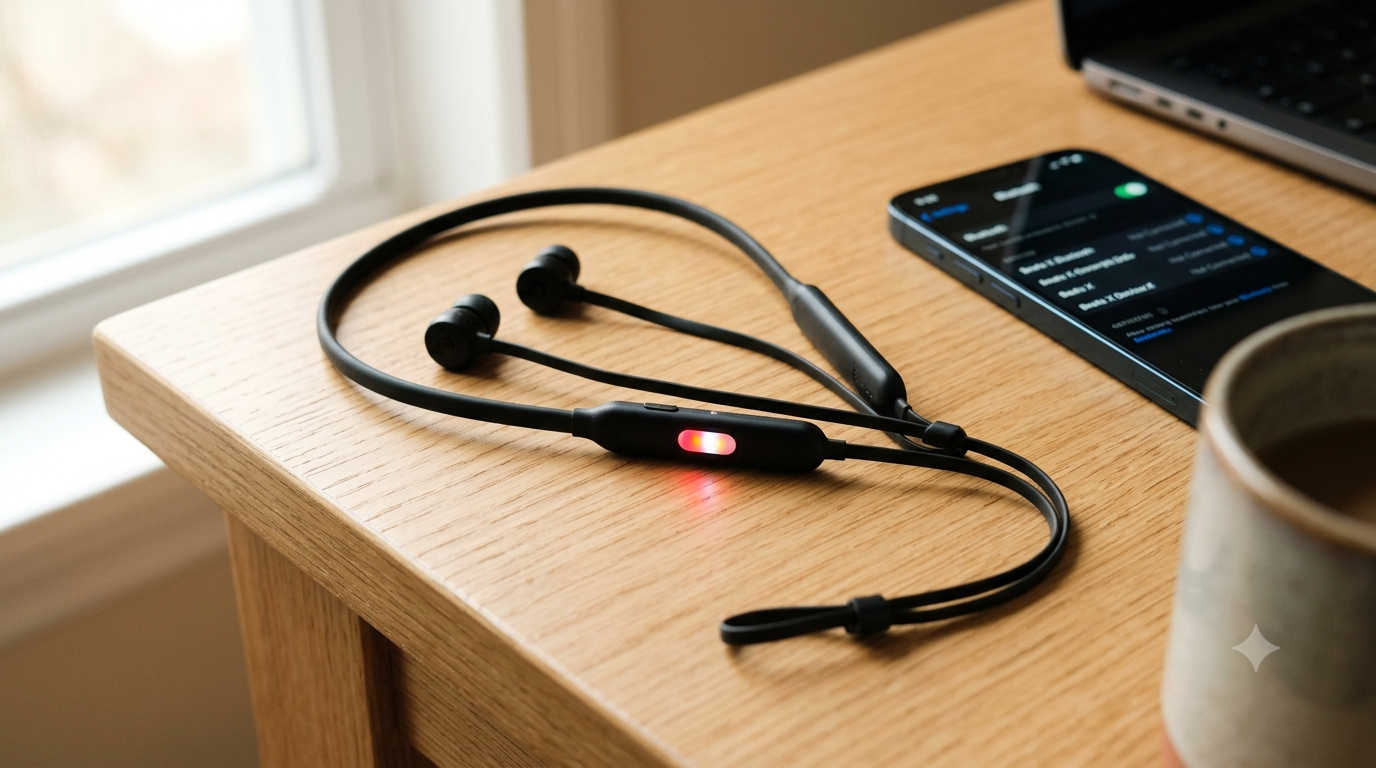
It’s a frustrating moment. You grab your Beats X, hold down the power button, and wait for the familiar white glow. Instead, the LED blinks an alternating pattern of red and white. You try turning them off and on again. Nothing changes. You plug them in to charge. Same blinking lights.
That alternating red and white flash isn’t random. It’s your headphones telling you something very specific has gone wrong. While it often signals a serious problem, a trip to the trash can isn’t your only option. I’ve helped quite a few friends troubleshoot this exact issue, and in many cases, the fix doesn’t require a single tool.
Let’s break down what those lights actually mean and walk through the steps that have the highest chance of bringing your Beats X back from the dead.
What Do the Flashing Red and White Lights Mean?
Think of this specific light sequence as a boot failure. When you power on your Beats X, a tiny internal computer wakes up and loads the firmware—the software that makes the headphones work. The blinking red and white pattern means that startup process crashed.
Instead of completing the boot sequence successfully, the headphones hit a critical error and gave up. This leaves them in a loop where they can’t turn on fully and can’t turn off completely.
Common triggers for this state include:
- A firmware update that failed partway through installation.
- A deeply drained battery that has confused the power management circuit.
- Corrupted internal memory that prevents the software from loading.
- A loose or broken connection between the battery and the logic board.
The first three causes are software-related. The last one is hardware-related and much tougher to fix at home. The following steps focus on solving the software side of the equation.
Step 1: Perform a Proper Hard Reset
A normal restart doesn’t work here because the headphones never actually boot up enough to register the command. You need a specific button sequence that forces the hardware to discharge residual power and reset from a completely cold state.
The sequence feels a bit awkward, and timing matters. Follow these instructions as closely as you can.
- Unplug your Beats X from any charging cable or power source.
- Locate both the Power button and the Volume Down button on the control module.
- Press and hold both buttons simultaneously.
- Keep them held down for a full 15 to 20 seconds. Do not release early, even if the light changes or goes completely dark.
- Release both buttons.
- Plug the headphones into a standard USB wall charger. Avoid connecting them to a computer’s USB port for this step, as wall chargers provide more consistent power delivery.
- Observe the LED on the charging cable. Leave them alone for a couple of minutes. If the light eventually settles into a steady red or white charging indicator, the reset likely worked.
After letting them charge for at least 30 minutes, try turning them on normally. In many cases, the flashing red and white pattern disappears and the headphones boot up as expected.
Step 2: Delete the Pairing Record From Your Phone
Sometimes the issue isn’t only in the headphones. A corrupted Bluetooth pairing record on your phone can cause the Beats X to crash repeatedly when they try to connect. Even though the headphones can’t stay on, the phone might still be trying to establish a handshake with a broken profile.
Here’s what you do.
- Open the Bluetooth settings on your iPhone, Android device, or computer.
- Find “Beats X” in the list of saved devices.
- Select it and choose the option to Forget or Remove the device.
- Turn Bluetooth off on your phone temporarily.
- Perform the hard reset sequence again from Step 1.
- After the reset and a short charge, press and hold the power button until you see a solid white light indicating pairing mode.
- Turn Bluetooth back on and pair the headphones as if they were brand new.
This step clears the communication slate and eliminates one variable that often keeps the headphones stuck in their failing loop.
Step 3: Force a Firmware Refresh Overnight
A failed firmware update is one of the most common causes of this problem. In the past, Apple offered a desktop tool called Beats Updater that could reinstall firmware directly. That software has been discontinued and doesn’t function on modern operating systems.
The current workaround relies on Apple’s silent update mechanism. If you own an iPhone, the iOS system can push firmware repairs to connected accessories without any prompt or notification.
To give this the best chance of working:
- Complete the hard reset and fresh pairing from Steps 1 and 2.
- Plug the Beats X into a wall charger using a reliable cable.
- Place your iPhone right next to the headphones. Keeping them close ensures a strong Bluetooth signal.
- Leave both devices undisturbed overnight. Do not use the headphones or unplug them during this period.
If the firmware was in a recoverable state, iOS sometimes detects the accessory and silently re-flashes a clean version of the software. The next morning, the flashing red and white lights may be gone.
Step 4: Identify a Possible Hardware Failure
If you have followed the first three steps carefully and the lights still blink red and white, the problem likely lives in the physical hardware. Beats X have a known weak point where the internal wiring connects inside the neckband. Over time, repeated flexing can cause solder joints to crack or battery connections to loosen.
You can perform two quick checks to confirm a hardware fault.
- The flex test: With the headphones turned on, gently squeeze the neckband near the point where the rubber meets the plastic housing that holds the Beats logo. Apply light pressure and watch the LED. If the blinking momentarily stabilizes or changes pattern when you press a specific spot, a broken internal connection is almost certainly the culprit.
- The charging behavior test: Plug the headphones into a charger. Does the light remain steady while connected and only start flashing when you unplug them? This points to a battery that can no longer hold a charge. It receives power from the cable but fails the moment it must supply voltage on its own.
If either of these tests reveals a hardware issue, repair options are limited. Micro-soldering is possible but typically costs more than the headphones are worth at this point in their lifespan. If the control module becomes noticeably hot while charging, stop using the device immediately and dispose of it through an electronics recycling program.
A Quick Summary Before You Decide
- A blinking red and white light on Beats X indicates a firmware crash or boot failure.
- Start with a hard reset using the Power and Volume Down button combination held for 15 to 20 seconds.
- Delete the Beats X from your phone’s Bluetooth list and re-pair fresh.
- Leave the headphones on a charger next to your iPhone overnight to trigger a silent firmware repair.
- If squeezing the neckband changes the LED behavior, the issue is a physical break in the internal wiring.
This particular light pattern has ended the life of many Beats X units. The sealed design and aging batteries make repairs difficult. But before you order a replacement, run through the hard reset sequence a couple of times. Some pairs just need a little extra persistence before they finally decide to cooperate again.