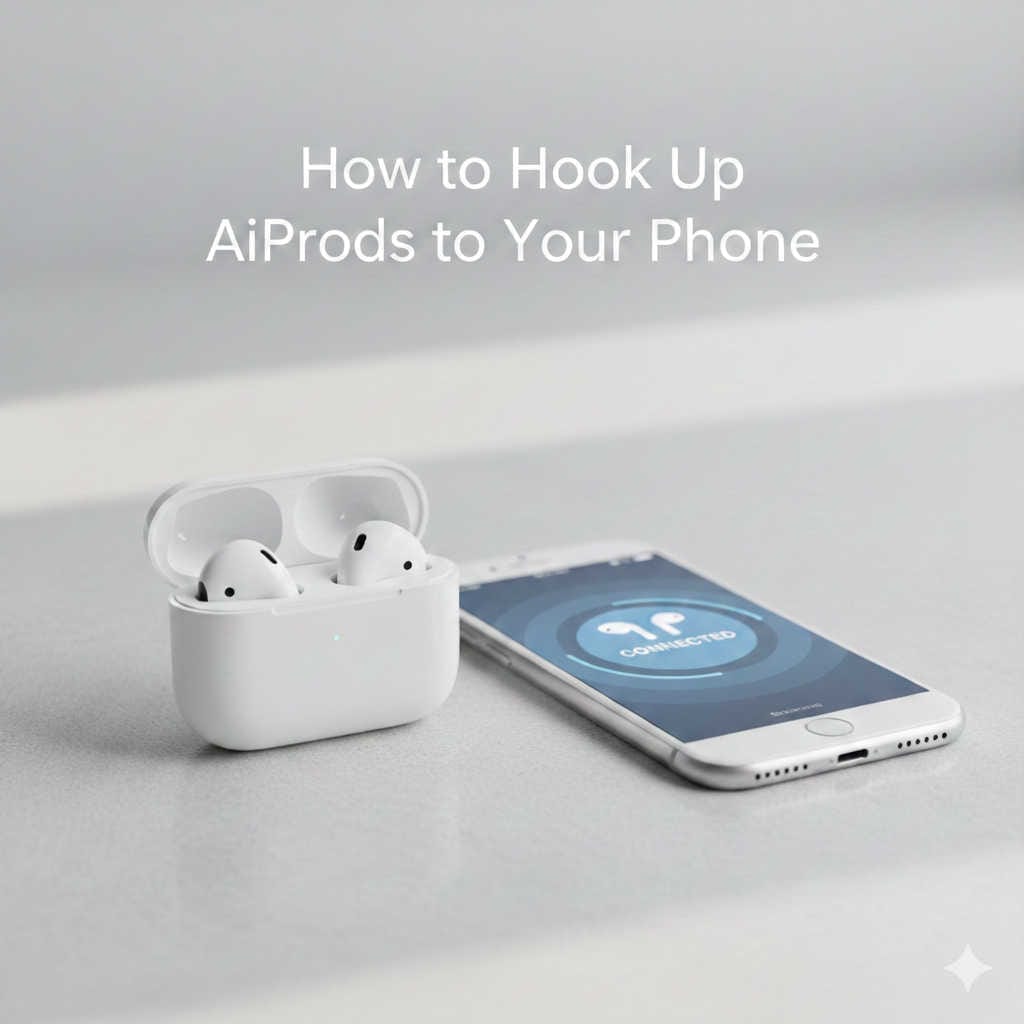
If you’ve just bought a pair of Apple AirPods, the first thing you probably want to do is connect them to your phone and start listening. The good news? Setting up AirPods is usually quick and easy. The even better news? Once you understand the process, you can connect them to almost any smartphone in minutes.
In this guide, you’ll learn:
- How to connect AirPods to an iPhone
- How to pair AirPods with an Android phone
- How to reconnect or reset them
- How to fix common connection problems
- Tips to improve sound and connection stability
Everything is explained in simple, step-by-step instructions so you can follow along without technical confusion.
Why AirPods Are So Easy to Connect
AirPods are designed to make wireless audio effortless. When paired with Apple devices, they connect almost instantly. Models like AirPods Pro even include advanced features like Active Noise Cancellation and automatic device switching.
Even if you don’t use an iPhone, AirPods still function as standard Bluetooth earbuds. That means they can connect to:
- Android phones
- Tablets
- Laptops
- Smart TVs
- Any Bluetooth-enabled device
Now let’s walk through the exact setup process.
How to Hook Up AirPods to an iPhone (Step-by-Step)
If you’re using an iPhone, this is the fastest way to connect.
Step 1: Turn On Bluetooth
- Unlock your iPhone.
- Go to Settings.
- Tap Bluetooth.
- Make sure Bluetooth is switched ON.
Most newer iPhones, including devices like the iPhone 15, have Bluetooth enabled by default.
Step 2: Open the AirPods Case Near Your Phone
- Keep your AirPods inside their charging case.
- Bring the case close to your iPhone.
- Open the lid.
Within a few seconds, a setup animation should appear on your screen.
Step 3: Tap “Connect”
- Tap Connect on the screen.
- Follow any short on-screen instructions.
That’s it. Your AirPods are now paired.
Bonus: Automatic Sync Across Apple Devices
If you’re signed into your Apple ID, your AirPods will automatically connect to:
- iPads
- Macs
- Apple Watch
You won’t need to pair them separately.
How to Connect AirPods to an Android Phone
Many people think AirPods only work with Apple products. That’s not true. They work like any other Bluetooth earbuds on Android.
Here’s how to connect them.
Step 1: Enable Bluetooth on Android
- Open Settings.
- Tap Connections or Bluetooth.
- Turn Bluetooth ON.
Step 2: Put AirPods in Pairing Mode
- Place both AirPods inside the case.
- Open the lid.
- Press and hold the button on the back of the case.
- Wait until the LED light flashes white.
The flashing white light means they are ready to pair.
Step 3: Select AirPods on Your Phone
- Look at the list of available Bluetooth devices.
- Tap “AirPods.”
- Confirm pairing if prompted.
Once connected, you can listen to music, make calls, and watch videos.
Keep in mind: Some Apple-exclusive features (like Siri or automatic switching) may not work on Android devices.
How to Reconnect AirPods If They Don’t Connect Automatically
Sometimes AirPods don’t reconnect right away. This can happen after software updates or switching between devices.
On iPhone
- Go to Settings.
- Tap Bluetooth.
- Find your AirPods in the device list.
- Tap them to reconnect.
If they still won’t connect:
- Tap the “i” icon next to the AirPods.
- Select Forget This Device.
- Pair them again from scratch.
On Android
- Open Bluetooth settings.
- Tap your AirPods from the paired list.
- If needed, remove them and reconnect in pairing mode.
How to Connect AirPods to a New Phone
If you bought a new phone or want to connect AirPods to another device, follow this method:
- Put the AirPods inside the case.
- Open the lid.
- Press and hold the button on the back until the light flashes white.
- Go to Bluetooth settings on the new phone.
- Select AirPods from the list.
This resets the connection and prepares them for a fresh pairing.
How to Reset AirPods Completely
If your AirPods are not connecting at all, resetting them often solves the issue.
This works for all models, including AirPods 3rd generation.
Reset Instructions
- Put AirPods in the case.
- Close the lid and wait 30 seconds.
- Open the lid.
- Press and hold the back button for about 15 seconds.
- Wait for the LED to flash amber, then white.
Now reconnect them as if they were brand new.
Common AirPods Connection Problems and Fixes
Even though AirPods are reliable, small issues can sometimes happen. Here’s how to fix the most common ones.
1. AirPods Not Showing in Bluetooth List
Possible causes:
- Not in pairing mode
- Bluetooth turned off
- Low battery
Solution:
- Ensure Bluetooth is on.
- Hold the case button until white light flashes.
- Charge the case and AirPods fully.
2. Only One AirPod Is Working
This usually happens due to low battery or dirty connectors.
Fix:
- Put both AirPods back in the case.
- Close it for 30 seconds.
- Clean the charging contacts gently.
- Reinsert and test again.
3. AirPods Keep Disconnecting
Possible reasons:
- Weak battery
- Interference from other Bluetooth devices
- Software glitch
Fix:
- Fully charge AirPods and case.
- Restart your phone.
- Reset and reconnect them.
4. Poor Sound Quality or Audio Cutting Out
Try the following:
- Move closer to your phone.
- Turn off unused Bluetooth devices nearby.
- Clean the speaker mesh carefully.
- Update your phone’s software.
Wireless interference can affect any Bluetooth earbuds, including AirPods.
How to Check AirPods Battery on Your Phone
Keeping track of battery life prevents sudden disconnections.
On iPhone
- Open the case near your phone.
- A battery status pop-up appears.
- You can also add the Battery widget to your home screen.
On Android
- Check battery under Bluetooth device details.
- Some third-party apps show battery percentage.
Tips to Improve AirPods Performance
Once connected, you can optimize your experience with these practical tips.
Keep the Case Charged
AirPods rely on the case to recharge. If the case is empty, your earbuds won’t power up properly.
Update Your Phone Software
Software updates often improve Bluetooth stability and compatibility.
Clean Your AirPods Regularly
Use a soft cloth and a dry brush to clean:
- Speaker mesh
- Charging connectors
- Inside the case
Dirt buildup can affect charging and sound quality.
Avoid Too Much Bluetooth Traffic
If many devices are connected nearby, signal interference may occur. Disconnect unused devices when possible.
Using AirPods Features After Connecting
Once connected, you can enjoy features depending on your model.
For example:
- Double-tap controls
- Press-and-hold gestures
- Active Noise Cancellation
- Transparency Mode
- Spatial Audio
Premium models like AirPods Max provide immersive surround sound with dynamic head tracking.
Even basic models offer excellent call clarity and balanced audio for everyday use.
Frequently Asked Questions
Do AirPods Work With All Phones?
Yes. Any phone with Bluetooth capability can connect to AirPods.
Why Won’t My AirPods Connect?
The most common reasons include:
- Low battery
- Not in pairing mode
- Software glitch
- Previously saved connection conflict
Resetting usually fixes the issue.
Can I Connect AirPods to Two Phones at the Same Time?
No. AirPods connect to one active device at a time. However, you can manually switch between devices.
Do AirPods Require Wi-Fi?
No. They use Bluetooth, not Wi-Fi, to connect.
Final Thoughts
Connecting AirPods to your phone is simple once you understand the steps. Whether you’re using an iPhone or Android device, the process only takes a few minutes.
If problems occur, most can be solved by:
- Restarting your phone
- Charging the AirPods
- Resetting and reconnecting
Wireless audio is meant to make life easier, not more complicated. With this complete guide, you now know exactly how to hook up AirPods to your phone, fix connection issues, and get the best performance from your earbuds.
Now go ahead—pair them up and enjoy your music, podcasts, and calls without the hassle of wires.