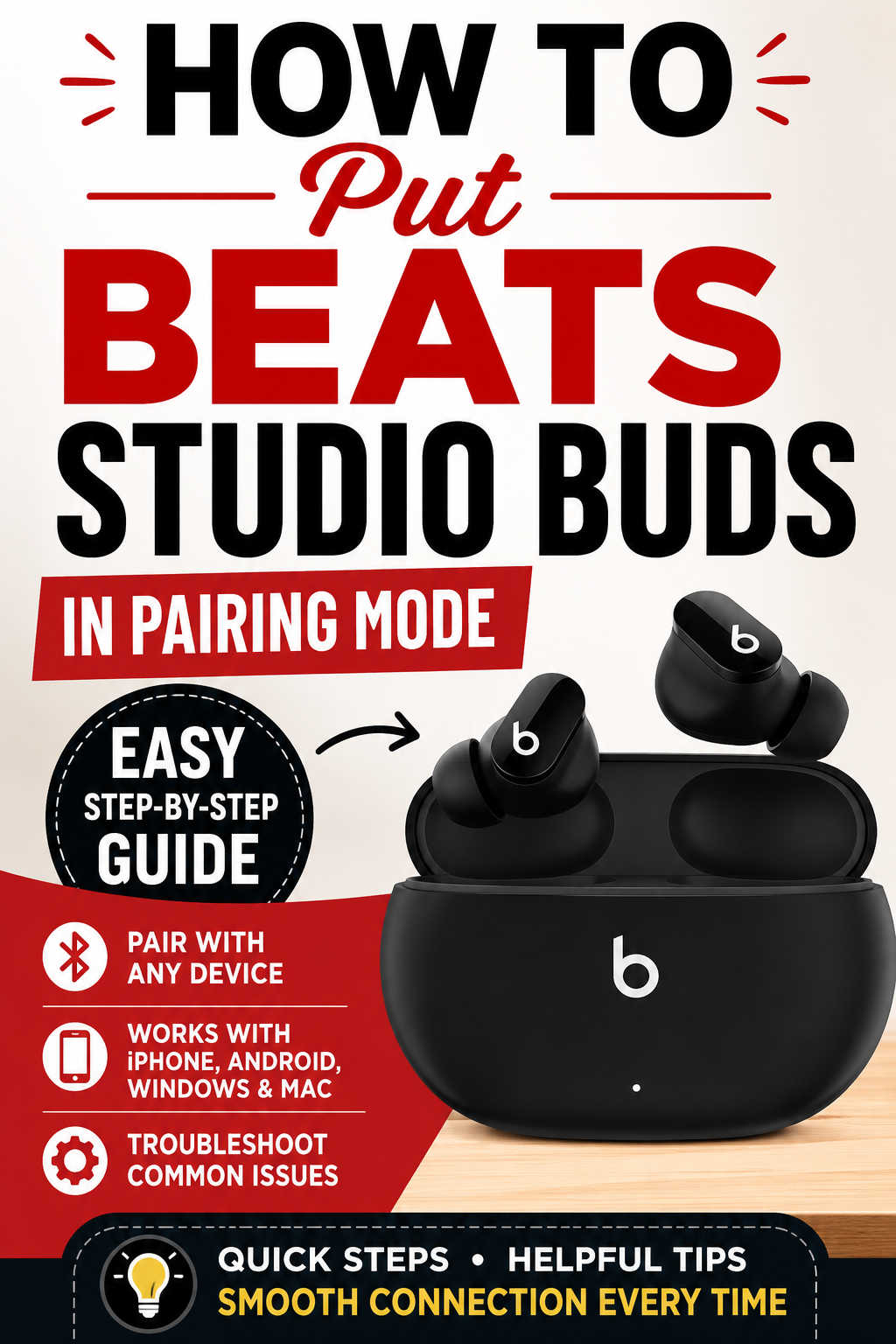
Whether you’re setting up your Beats Studio Buds for the first time or connecting them to a different device, knowing how to activate pairing mode is the first step. Fortunately, the process only takes a few seconds and works similarly across iPhone, Android, Windows, and Mac devices.
Many connection problems happen simply because the earbuds aren’t in pairing mode or are still linked to another device. Understanding how pairing works—and what to do when it doesn’t—can save you a lot of frustration.
This guide explains exactly how to put your Beats Studio Buds into pairing mode, connect them to different devices, troubleshoot common Bluetooth issues, and know when a reset might be necessary.
What Is Pairing Mode and Why Does It Matter?
Pairing mode is a temporary Bluetooth state that allows your Beats Studio Buds to become visible to nearby devices. While in this mode, your phone, tablet, or computer can detect the earbuds and establish a secure wireless connection.
You’ll typically need to enter pairing mode in several situations:
- You’re connecting the earbuds for the first time.
- You’ve purchased a new phone or computer.
- You want to switch between different devices.
- You’ve reset the earbuds.
- Bluetooth connectivity has stopped working correctly.
Without pairing mode, nearby devices won’t be able to discover the earbuds, making a new connection impossible.
How to Put Beats Studio Buds in Pairing Mode
The pairing process is simple and only requires the charging case.
First, place both earbuds inside the charging case. Leave the case lid open, as closing it prevents the earbuds from entering pairing mode.
Next, locate the small system button on the case. Press and hold the button for approximately five seconds.
Watch the LED indicator on the front of the case. Once it begins flashing white, your Beats Studio Buds have entered pairing mode and are ready to connect to a nearby Bluetooth device.
At this point, open the Bluetooth settings on the device you want to pair and look for Beats Studio Buds in the list of available devices.
How to Connect Beats Studio Buds to an iPhone
Apple has made pairing Beats products especially convenient. If you’re using an iPhone, you often won’t even need to visit the Bluetooth settings.
With Bluetooth enabled, unlock your iPhone and hold the open charging case near the device. After a few moments, a setup animation should appear automatically. Simply tap Connect and follow the on-screen instructions.
If the setup animation doesn’t appear, don’t worry. Open Settings, select Bluetooth, make sure Bluetooth is turned on, and choose Beats Studio Buds from the available devices list. Once connected, the earbuds should automatically reconnect whenever they’re nearby and Bluetooth is enabled.
How to Pair Beats Studio Buds with an Android Phone
Pairing on Android is nearly as straightforward.
After placing the earbuds into pairing mode, open your phone’s Bluetooth settings and search for nearby devices. When Beats Studio Buds appears, tap the name to complete the connection.
Many modern Android phones also support Google’s Fast Pair feature. If your device supports it, you’ll receive a notification asking if you’d like to connect as soon as the earbuds enter pairing mode, making setup even quicker.
How to Connect Beats Studio Buds to Windows
Using Beats Studio Buds with a Windows laptop or desktop is easy once Bluetooth is enabled.
Open the Windows Bluetooth settings, select Add device, and choose Bluetooth as the connection type. After your computer scans for nearby devices, select Beats Studio Buds from the list.
The connection should complete within a few seconds. Once paired successfully, Windows will remember the earbuds, allowing them to reconnect automatically in future sessions.
How to Pair Beats Studio Buds with a Mac
Mac users can connect their earbuds through the Bluetooth settings found in System Settings or System Preferences, depending on the macOS version.
With the earbuds already in pairing mode, enable Bluetooth on your Mac and wait for Beats Studio Buds to appear. Click Connect, and the pairing process will finish automatically.
After the initial setup, the earbuds should reconnect whenever they’re within range and not actively connected to another device.
How to Confirm Your Beats Studio Buds Are in Pairing Mode
It’s helpful to know whether the earbuds have successfully entered pairing mode before troubleshooting anything else.
The easiest indicator is the LED light on the charging case. A flashing white light means the earbuds are actively broadcasting their Bluetooth signal and are ready to pair.
You should also see Beats Studio Buds appear in your device’s Bluetooth menu within a few seconds. If the earbuds don’t appear, they’re either not in pairing mode or another issue is preventing Bluetooth discovery.
Why Your Beats Studio Buds Won’t Enter Pairing Mode
If the earbuds refuse to enter pairing mode, don’t assume they’re defective. In many cases, the problem is caused by a simple issue that’s easy to fix.
Check the Battery Level
A low battery is one of the most common reasons pairing fails. When either the earbuds or charging case doesn’t have enough power, Bluetooth functions may not operate correctly.
Charge both the earbuds and the case for at least 20 to 30 minutes before attempting to pair them again. Even if one earbud appears charged, allowing both earbuds to recharge ensures they communicate properly with the case.
Make Sure the Lid Is Open
The charging case must remain open while holding the system button.
Many users accidentally press the pairing button with the lid closed, preventing the earbuds from entering pairing mode. Leaving the lid open allows the case to activate Bluetooth discovery correctly.
Ensure the Earbuds Are Properly Seated
The earbuds should sit securely inside the charging case and make proper contact with the charging pins.
If they’re not positioned correctly, the case may not recognize that both earbuds are present, preventing pairing mode from activating.
Removing the earbuds and placing them back into the case often resolves this issue.
Beats Studio Buds Not Showing Up on Bluetooth
Sometimes the earbuds successfully enter pairing mode but still don’t appear on your phone or computer.
This usually points to a Bluetooth issue rather than a hardware problem.
Restart Bluetooth
Turning Bluetooth off and back on refreshes your device’s wireless connections.
Over time, Bluetooth services can become temporarily unresponsive or fail to detect nearby devices. Restarting Bluetooth forces the system to perform a fresh scan, often resolving detection issues within seconds.
Forget Previous Connections
If the earbuds have already been paired with your device, the saved Bluetooth profile may have become corrupted.
Removing the existing connection and pairing the earbuds again creates a fresh Bluetooth profile, which frequently fixes connection errors.
Simply locate Beats Studio Buds in your Bluetooth settings, select Forget This Device or Remove Device, then place the earbuds back into pairing mode before reconnecting.
Move Away from Wireless Interference
Bluetooth signals can sometimes be disrupted by crowded wireless environments.
If you’re surrounded by multiple Bluetooth accessories, Wi-Fi routers, or wireless speakers, temporarily moving to a different location can improve discovery and pairing reliability.
Restart Your Device Before Trying Again
Although it sounds simple, restarting your phone or computer often fixes Bluetooth problems.
A restart clears temporary software glitches, reloads wireless drivers, and refreshes background services that may have become stuck. Many pairing issues disappear immediately after a reboot.
Before assuming something is wrong with the earbuds, it’s always worth restarting the device you’re trying to connect.
How to Reset Beats Studio Buds
If none of the previous solutions work, performing a factory reset is usually the most effective fix.
Place both earbuds inside the charging case and leave the lid open. Press and hold the system button for approximately 15 seconds until the LED flashes red and then white.
This process clears all previously saved Bluetooth pairings and restores the earbuds to their factory settings.
After the reset finishes, the earbuds automatically return to pairing mode, allowing you to connect them as though they were brand new.
Tips for a More Reliable Bluetooth Connection
Once your Beats Studio Buds are connected, a few simple habits can help keep the connection stable.
Keep your device within about 10 meters (33 feet) whenever possible, especially indoors where walls and furniture can weaken Bluetooth signals.
Maintaining a healthy battery level also improves performance. Extremely low battery levels can occasionally lead to connection drops or reduced stability.
It’s also worth installing firmware updates whenever they’re available. Updates often include Bluetooth improvements, bug fixes, and compatibility enhancements that make pairing more reliable across different devices.
Finally, if your earbuds frequently switch to another phone or tablet, disable Bluetooth on devices you’re not currently using. This prevents the earbuds from automatically reconnecting to the wrong device.
Should You Replace Your Beats Studio Buds?
Most pairing problems are caused by software, Bluetooth settings, or outdated connections rather than hardware failure. In many cases, charging the earbuds, resetting them, or reconnecting them from scratch is enough to restore normal operation.
However, if your Beats Studio Buds consistently fail to enter pairing mode after multiple resets, won’t hold a charge, or frequently disconnect despite working with different devices, replacement may be worth considering.
Users who want longer battery life, improved noise cancellation, or newer Bluetooth features may also benefit from upgrading to a newer model. On the other hand, if your current earbuds work well after troubleshooting, there’s little reason to replace them simply because of a temporary pairing issue.
Conclusion
Learning how to put Beats Studio Buds in pairing mode is an essential skill that makes connecting to new devices quick and hassle-free. In most cases, all you need to do is place the earbuds in the charging case, leave the lid open, and hold the system button until the LED begins flashing white.
If the earbuds don’t appear in your device’s Bluetooth menu, simple fixes like charging the case, restarting Bluetooth, forgetting old connections, or performing a factory reset usually solve the problem. Understanding why these solutions work can make future troubleshooting much easier and help you avoid unnecessary frustration.
With the steps in this guide, you should be able to pair your Beats Studio Buds confidently and get back to enjoying your music, calls, and podcasts with a reliable wireless connection.