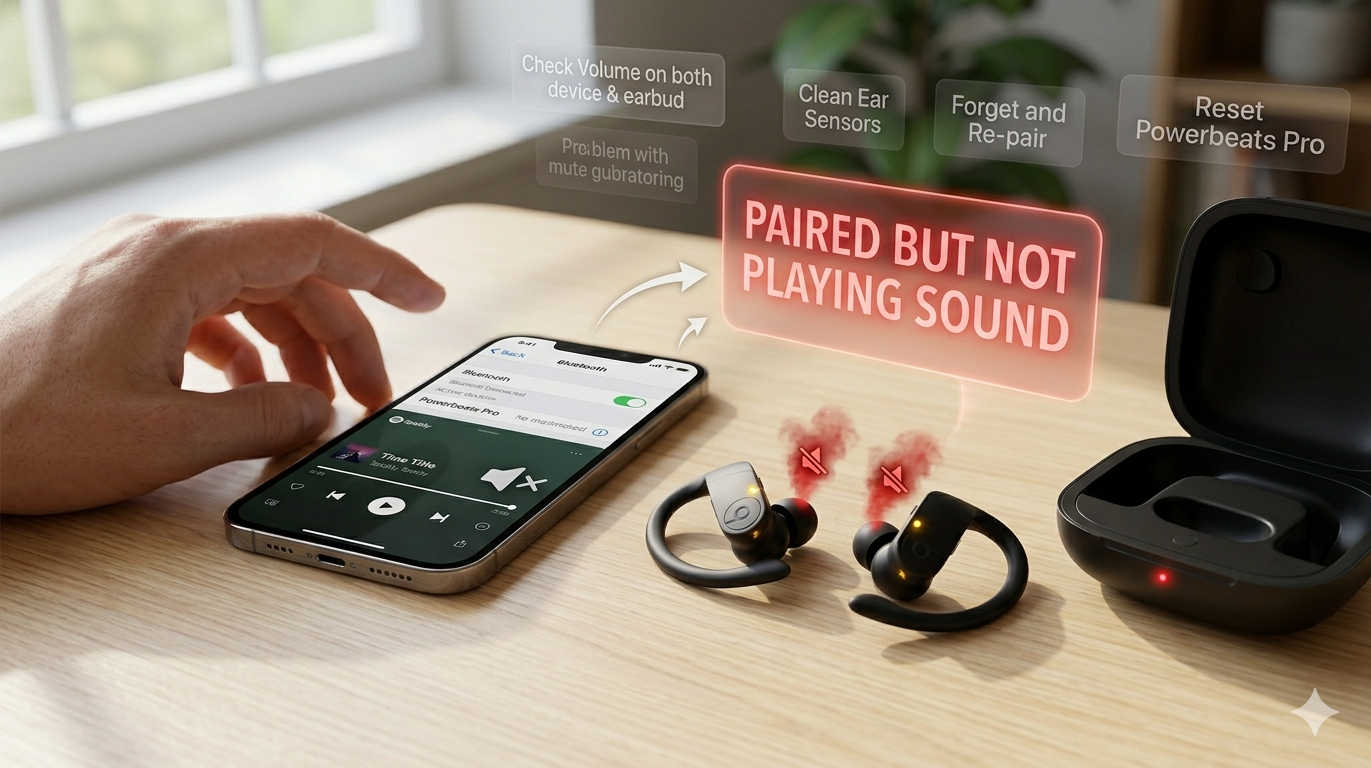
There’s nothing more confusing than seeing your Powerbeats Pro connected to your phone while hearing no audio at all. Bluetooth shows the earbuds as paired, your music starts playing, and yet there’s complete silence. Whether you’re listening to music, watching videos, or taking calls, this issue can quickly become frustrating.
Fortunately, a successful Bluetooth connection doesn’t always mean your earbuds are defective. In most cases, the problem is caused by a temporary software glitch, incorrect audio routing, outdated firmware, or a pairing issue that can be resolved in just a few minutes.
This guide walks through the most effective fixes for Powerbeats Pro that are paired but not playing sound. Each solution explains not only what to do but also why it may solve the problem, helping you identify the root cause and get your earbuds working again.
Why Are Your Powerbeats Pro Connected but Not Playing Sound?
When your Powerbeats Pro appear as connected but produce no sound, the Bluetooth connection itself is usually working. The issue often occurs after pairing, when your phone and earbuds fail to communicate properly for audio playback.
Several factors can lead to this behavior, including:
- Temporary Bluetooth communication errors
- Audio being routed to another connected device
- Low battery in one or both earbuds
- A software or firmware bug
- Corrupted Bluetooth pairing data
- Dirt or earwax blocking the speaker mesh
- App-specific playback problems
- Outdated operating system software
Because multiple issues can produce the same symptom, it’s best to work through the troubleshooting steps in order, starting with the simplest solutions.
Check the Volume and Audio Output First
Before assuming there’s a serious problem, verify that the issue isn’t related to your device’s audio settings.
Sometimes media volume is turned all the way down while ringtone volume remains high. It’s also possible for your phone to send audio to another Bluetooth device, such as a speaker, smartwatch, or your car’s infotainment system, even though the Powerbeats Pro still appear connected.
Increase your media volume while audio is playing, then check your device’s audio output menu to make sure Powerbeats Pro are selected as the active playback device. If multiple Bluetooth accessories are nearby, temporarily disconnect them and test the earbuds again.
This simple check resolves more connection-related audio problems than many users expect.
Return Both Earbuds to the Charging Case
A brief connection reset often restores audio when one or both earbuds fail to initialize correctly.
Place both earbuds back into the charging case, close the lid, and leave them there for around 30 seconds. Afterward, remove both earbuds at the same time and allow them to reconnect automatically.
Powerbeats Pro establish communication between the left and right earbuds before streaming audio from your phone. Removing them together gives the earbuds a chance to rebuild that internal connection, which can eliminate silent playback caused by synchronization errors.
Restart Bluetooth to Refresh the Wireless Connection
Bluetooth connections occasionally become unstable after switching between devices or waking your phone from sleep.
Turn Bluetooth off on your phone, wait about 15 seconds, and then enable it again before reconnecting your earbuds.
Restarting Bluetooth clears temporary communication errors without affecting your saved pairing information. If the problem appeared suddenly after moving between different devices, this quick refresh often restores normal audio playback.
Restart Your Phone or Tablet
If Bluetooth restarting doesn’t help, reboot the device you’re using.
Phones and tablets continuously manage wireless connections, background services, and audio routing. Occasionally, these processes become stuck, especially after operating system updates or extended periods without restarting.
A full reboot clears temporary software glitches and reloads system services responsible for Bluetooth audio.
Once your device powers back on, reconnect your Powerbeats Pro and test them before trying more advanced troubleshooting.
Forget the Bluetooth Connection and Pair Again
Sometimes the saved Bluetooth profile becomes corrupted, allowing the earbuds to connect without properly handling audio.
Open your Bluetooth settings, locate your Powerbeats Pro, and choose the option to forget or remove the device. After deleting the existing pairing, place the earbuds into pairing mode and connect them as if they were new.
Creating a fresh Bluetooth profile replaces damaged connection data and frequently resolves situations where the earbuds appear connected but remain silent.
Reset Your Powerbeats Pro
If reconnecting doesn’t solve the issue, resetting the earbuds is the next logical step.
Place both earbuds inside the charging case and leave the lid open. Press and hold the system button until the LED indicator flashes red and then white before releasing it.
This process restores the earbuds’ Bluetooth settings to their factory defaults without affecting any data on your phone.
A reset is particularly useful when your earbuds repeatedly connect without producing sound or experience frequent connection failures after software updates.
Make Sure Both Earbuds Have Enough Battery
Battery-related issues don’t always prevent Powerbeats Pro from connecting.
If one earbud has a critically low battery while the other still has enough power, you may experience unusual behavior such as one-sided audio, repeated disconnects, or complete silence.
Place both earbuds into the charging case and allow them to charge for at least 30 minutes. Also verify that the charging contacts are clean and that both earbuds are charging correctly.
Testing the earbuds after a full charge helps rule out power-related problems before moving on to more advanced solutions.
Clean the Speaker Mesh and Charging Contacts
Over time, earwax, lint, and dust can accumulate on the speaker grille and charging contacts.
While blocked speaker openings usually reduce volume rather than eliminate sound entirely, heavy buildup can noticeably affect audio quality. Dirty charging contacts may also prevent one earbud from charging properly, leading to inconsistent performance.
Use a dry microfiber cloth along with a soft brush or cotton swab to gently clean the earbuds. Avoid inserting sharp objects into the speaker mesh or using excessive moisture, as this can damage sensitive internal components.
Regular cleaning helps maintain both sound quality and charging reliability.
Check Whether the Problem Is Limited to One App
If audio is missing only when using a particular application, your earbuds may not be the source of the problem.
Close the affected app completely and reopen it. If the issue persists, update the application and test audio using another app such as a music streaming service or a video player.
When sound works normally elsewhere, the problem likely lies within the original app rather than your Bluetooth connection.
Identifying whether the issue is system-wide or app-specific can save significant troubleshooting time.
Update Your Device Software
Operating system updates often include Bluetooth improvements, bug fixes, and compatibility enhancements.
If your phone or tablet is running an older version of its operating system, installing the latest update may resolve unexpected connection issues between the device and your earbuds.
After updating, restart the device before reconnecting your Powerbeats Pro.
Keeping your operating system current reduces the likelihood of Bluetooth problems appearing after security patches or application updates.
Keep Your Powerbeats Pro Firmware Up to Date
Like most wireless earbuds, Powerbeats Pro rely on firmware to manage Bluetooth connectivity, battery performance, and audio processing.
Firmware updates install automatically when the earbuds are paired with a compatible Apple device, connected to power, and within Bluetooth range.
Although firmware updates require little user interaction, they often include fixes for connectivity issues and overall stability improvements. If your earbuds haven’t been updated in a while, leaving them charging near your paired device may allow any pending firmware update to install.
Test Your Powerbeats Pro with Another Device
Connecting your earbuds to another phone, tablet, or computer is one of the fastest ways to isolate the source of the problem.
If the earbuds play sound normally on another device, your original phone is likely responsible for the issue. On the other hand, if the problem follows the earbuds across multiple devices, the issue is probably related to the earbuds themselves.
This simple test helps determine whether you should continue troubleshooting your phone or focus on the earbuds.
Disconnect Other Bluetooth Devices
Powerbeats Pro support switching between previously paired devices, but this convenience can occasionally create confusion.
If your earbuds automatically reconnect to another nearby device, your current phone may still display them as connected while audio is actually being routed elsewhere.
Temporarily disable Bluetooth on nearby laptops, tablets, smart TVs, or secondary phones, then reconnect only to the device you intend to use.
Eliminating competing Bluetooth connections often restores normal playback immediately.
When Should You Consider Replacing Your Powerbeats Pro?
Most audio issues are software-related and can be fixed using the troubleshooting steps above. However, there are situations where replacement becomes a reasonable option.
If your earbuds have suffered water damage, experienced repeated drops, or continue producing no sound after a complete reset and testing on multiple devices, an internal hardware failure may be the cause.
Likewise, batteries naturally degrade over time. If your Powerbeats Pro no longer hold a charge, disconnect frequently, or only one earbud consistently works despite troubleshooting, repairing or replacing the earbuds may be more practical than continuing to troubleshoot.
Before purchasing a replacement, contact official support to determine whether your earbuds qualify for warranty service or repair. A replacement is generally worth considering only after software issues and connection problems have been ruled out.
Tips to Prevent Future Audio Problems
Many Bluetooth issues can be avoided with a few simple habits.
Keep your earbuds clean, store them in the charging case when not in use, and install software updates whenever they’re available. Avoid allowing the batteries to remain completely discharged for extended periods, and periodically restart your phone to clear temporary system glitches.
It’s also helpful to disconnect unused Bluetooth accessories that may interfere with automatic audio routing. These small maintenance steps can improve connection stability and reduce the likelihood of silent playback returning.
Conclusion
When your Powerbeats Pro are paired but not playing sound, the problem is usually caused by a connection or software issue rather than a hardware failure. Starting with simple checks—such as verifying the audio output, restarting Bluetooth, and reconnecting the earbuds—often restores sound within minutes.
If those basic fixes don’t help, resetting the earbuds, updating your device and firmware, testing another device, and checking battery levels can help narrow down the cause. Working through these steps methodically makes it much easier to identify whether the issue lies with your phone, the Bluetooth connection, or the earbuds themselves.
In most cases, Powerbeats Pro can be restored to normal operation without professional repair. If you’ve completed every troubleshooting step and the earbuds still produce no sound across multiple devices, it’s a good indication that it’s time to contact support or consider a replacement.