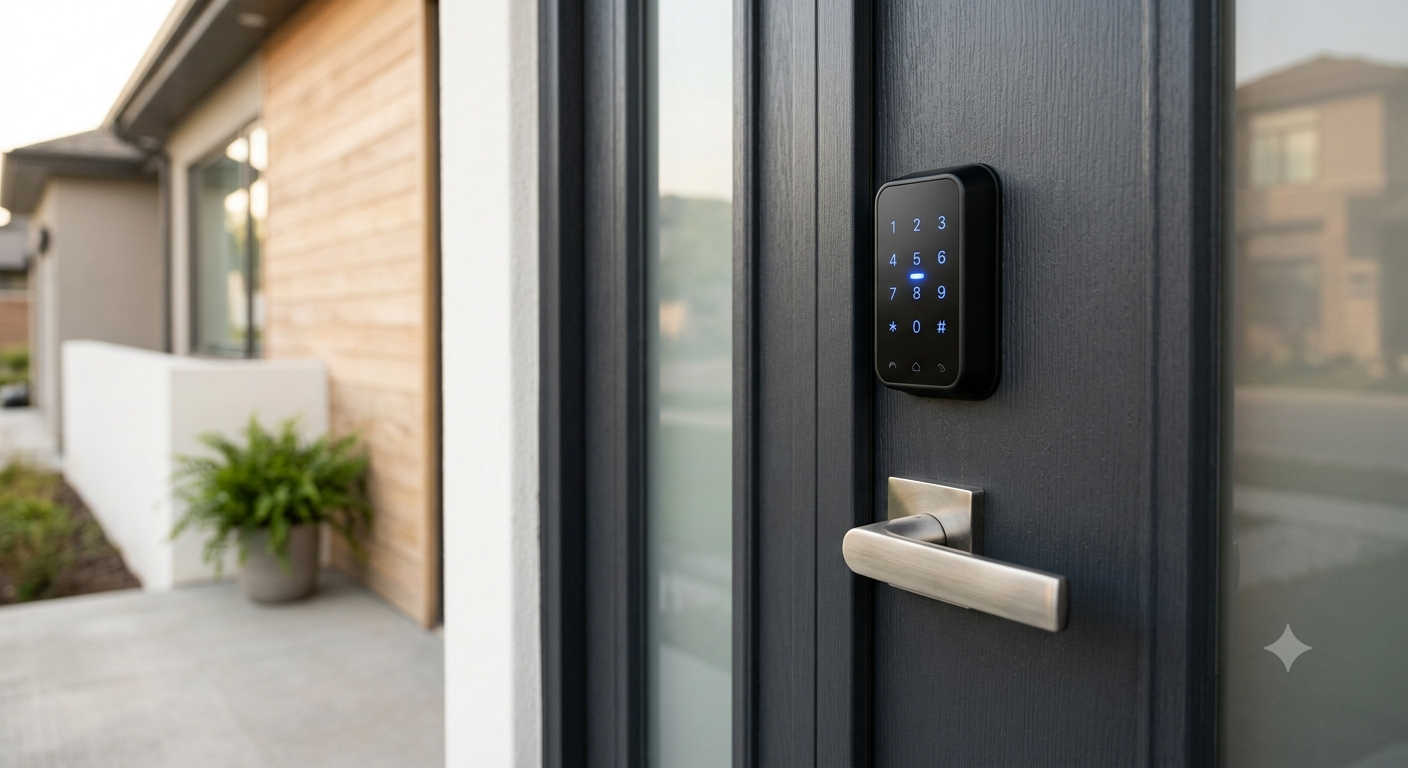
Standing on your own porch punching in a code that should work but doesn’t is one of those small, specific frustrations that feels bigger than it is. Maybe you just bought a place and the previous owners never actually handed over working credentials. Maybe your keypad has started unlocking on its own, or ignoring every code you try. Whatever got you here, a reset is almost always the fastest way back to a lock that behaves the way it’s supposed to, and Kwikset’s process, while not identical across every model, follows a logic that’s easy to pick up once you’ve seen it laid out clearly.
This guide walks through the three types of resets Kwikset offers, how to run each one, and the handful of steps people tend to skip that end up causing a second round of trouble a few days later.
Reset, Factory Reset, or Network Reset? Know the Difference First
People use “reset” as a catch-all term, but Kwikset actually splits it into three distinct actions, and mixing them up is where most confusion starts.
A system reset clears every stored access code and the lock’s handing configuration, then kicks off the handing process again automatically. This is the right move if you just need to wipe old codes and start fresh, without disconnecting the lock from anything.
A factory reset goes considerably further. It restores the lock entirely to its out-of-box state, and if it’s tied into a smart home platform, that connection gets severed too. This is the one to reach for when the lock is misbehaving, when it’s changing hands to a new owner, or when a fresh installation just isn’t cooperating.
A network reset is the narrowest of the three. It only touches Wi-Fi credentials, Bluetooth pairings, and user associations, leaving the rest of the lock’s settings untouched. If your only issue is connectivity, this is usually all you need.
Knowing which one you actually want before you start saves you from redoing the handing process or re-pairing your smart home hub unnecessarily.
How to Factory Reset a Kwikset Smart Lock
Before anything else, prop the door fully open. It’s tempting to skip this, but the reset sequence includes a handing step where the lock needs to feel the bolt move freely through its full range, and a closed door can stall the whole process or, worse, leave you locked out partway through.
On most SmartCode and traditional programmable Kwikset models, the sequence goes like this:
Pull the battery pack out. While reinserting it, press and hold the Program button. Keep that button held down for about 30 seconds, until you hear a beep and the status LED turns red. Let go, then press the Program button once more. A green LED and two beeps mean the reset went through successfully. From there, you’ll need to walk through the door handing process again so the lock relearns which direction the bolt travels, and if it was connected to a smart home system, you’ll have to re-add it from scratch.
Wi-Fi-enabled models like the Halo and Halo Touch handle this a little differently, using the app or a dedicated reset button instead of the battery-pull sequence, but the outcome is the same: Bluetooth pairings, Wi-Fi settings, and event history all get wiped. Kevo locks use their own reset button, held for roughly 10 seconds until the LEDs flash red, and afterward you’ll need to re-enroll your phone and any fobs, then resend eKeys to anyone who had access before.
What Actually Gets Erased
It helps to know exactly what a factory reset takes with it, so nothing catches you off guard afterward. Every stored access code disappears. Bluetooth and Wi-Fi pairings are gone. User associations and event history are wiped clean. The lock also forgets its handing calibration entirely, which is why that step has to be repeated before the lock will function normally again.
Default codes return to their out-of-box settings once the reset completes, typically an all-zero user code and a 1-2-3-4 programming code. That detail matters more than it sounds like it should, which brings us to the step almost everyone forgets.
Do This Immediately After Resetting
Change the default codes right away. A freshly reset lock sitting on its factory user and programming codes is about as secure as leaving a spare key under the doormat, so this isn’t a step to put off until later. Set a new programming code first, then create user codes using a random sequence, six to eight digits with no repeating patterns and nothing tied to a birthday or address.
If the lock connects to an app or a broader smart home setup, re-add it there before calling the job done, since the reset severs that connection along with everything else.
Once the codes are set, test the lock three separate ways: through the app if it has one, with the physical keypad, and with the manual thumb-turn or key override. This matters especially if the reset was triggered by a handing error in the first place, since an incomplete handing process is the single most common reason a freshly reset lock still won’t cooperate properly.
If the Lock Still Won’t Cooperate
Weak batteries are worth ruling out before assuming there’s a hardware problem. Even brand-new batteries occasionally test low, and a lock straining to complete its handing calibration will often throw repeated beeps or stall partway through the sequence. Double-checking that the door is fully open with a completely clear bolt path resolves a surprising number of resets that otherwise look like they’ve failed.
If the lock has been reset several times without holding a configuration, or it won’t pair with the app after a network reset, it’s worth checking Kwikset’s support documentation for your exact model number. Not every lock in the current lineup uses an identical sequence, and matching the steps to your specific model tends to save a lot of trial and error.
Choosing a Kwikset Lock, If You’re Starting Fresh
If your current lock is giving you enough trouble that a reset feels like a temporary patch rather than a real fix, it might be worth upgrading rather than repeating this process every few months. The SmartCode 270 is a solid pick for anyone who wants reliable keypad entry without needing an app or Wi-Fi involved at all, and it’s held up well in long-term use reviews for exactly that simplicity. If remote access matters more to you, the Halo Wi-Fi deadbolt connects directly to your home network without a separate hub, and it supports geofencing so the door can unlock automatically as you approach. For touch-to-open convenience, the Kevo line skips the keypad entirely in favor of a tap-to-unlock system paired with your phone, which is worth considering if you’re frequently unlocking the door with your hands full.
Frequently Asked Questions
Does resetting a Kwikset lock affect my app account or cloud data? No. A factory reset only affects the physical lock itself. Your Kwikset app account and any cloud-stored settings remain intact, though you will need to re-add the lock to the app after the reset completes.
Can I reset a Kwikset lock without the app? Yes. All current Kwikset locks can be reset using the physical buttons on the lock itself, so an app or Wi-Fi connection isn’t required to complete the process.
What’s the default code after a Kwikset factory reset? Most models return to a user code of all zeros and a programming code of 1-2-3-4. Change both immediately after resetting, since leaving the defaults active leaves the lock effectively unsecured.
Why does my lock keep beeping instead of resetting? Three rapid beeps usually point to the door being closed during the handing step, an obstruction in the bolt’s path, or batteries that are drawing lower voltage than they should. Open the door fully, clear the bolt path, and try fresh batteries before repeating the sequence.
How often should I reset my smart lock? Only when necessary. Reasonable triggers include moving into a new property, tenant turnover, a suspected security breach, or persistent malfunctions. Resetting without a real reason puts unnecessary wear on the internal mechanism.
Will a reset fix a lock that won’t respond to any code? Usually, yes, assuming the issue is software-related rather than a battery or mechanical problem. If a factory reset doesn’t resolve it, check battery voltage and the bolt’s physical movement before assuming there’s a deeper hardware issue.