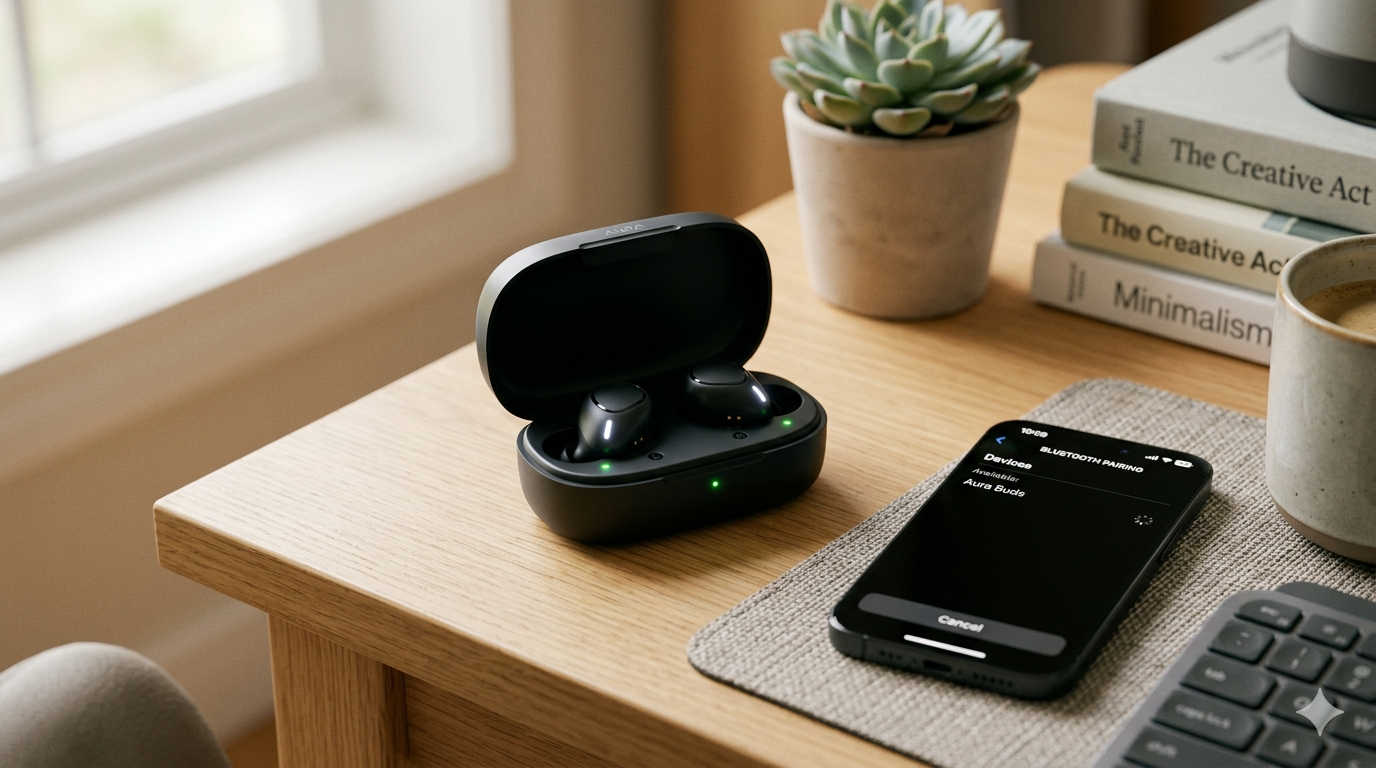
Wireless earbuds have become a part of everyday life. Whether you’re listening to music, attending online classes, joining video meetings, or watching videos on your phone, earbuds make everything easier and more convenient. Among many wireless audio brands, Raycon earbuds are widely known for their comfortable design, deep bass sound, and affordable pricing.
However, one of the most common issues users face is connecting the earbuds to a device for the first time. Many people search online because they cannot figure out how to put Raycon earbuds in pairing mode.
The good news is that the process is simple once you understand how these earbuds work. In this detailed guide, you will learn:
- How to activate pairing mode on Raycon earbuds
- How to connect them to phones, laptops, and tablets
- How to troubleshoot pairing problems
- How to reset Raycon earbuds if they refuse to connect
- Tips to ensure a smooth connection every time
This guide is written in a clear, beginner-friendly way so anyone can follow it without technical knowledge.
Understanding Pairing Mode on Raycon Earbuds
Before learning the steps, it helps to understand what pairing mode actually means.
Pairing mode is a special state that allows wireless earbuds to be discovered by nearby Bluetooth devices. When the earbuds enter pairing mode, they broadcast a signal so your phone, laptop, or tablet can detect them.
Once a device finds the earbuds, you simply select them from the Bluetooth list to complete the connection.
During pairing mode, Raycon earbuds typically show flashing LED lights. These blinking lights indicate that the earbuds are actively searching for a device to connect with.
After the connection is successful, the blinking usually stops and the earbuds stay connected automatically whenever you take them out of the charging case.
How Raycon Earbuds Connect to Devices
Raycon earbuds use Bluetooth technology to communicate with other devices. The connection process usually happens in several stages.
- The earbuds power on when removed from the charging case.
- The left and right earbuds synchronize with each other.
- The earbuds enter pairing mode.
- Your phone or computer scans for available Bluetooth devices.
- You select the Raycon earbuds from the list.
Once the connection is established, the earbuds remember the device. In the future, they will automatically reconnect whenever Bluetooth is turned on.
Method 1: Automatic Pairing Mode (The Easiest Way)
The easiest way to put Raycon earbuds into pairing mode is by simply removing them from the charging case.
Step-by-Step Instructions
- Place both earbuds inside the charging case.
- Close the lid for about 5 seconds.
- Open the case again.
- Remove both earbuds at the same time.
- Watch for flashing LED lights on the earbuds.
If the lights blink repeatedly, the earbuds have entered pairing mode.
Now follow these steps:
- Open the Bluetooth settings on your phone, tablet, or laptop.
- Turn Bluetooth on if it isn’t already enabled.
- Wait for your device to detect available devices.
- Tap the name of your Raycon earbuds in the list.
Once selected, the earbuds will connect within a few seconds.
This automatic pairing method works for most Raycon models, including popular ones like:
- Raycon Everyday Earbuds
- Raycon Fitness Earbuds
- Raycon Gaming Earbuds
Method 2: Manually Activating Pairing Mode
Sometimes the automatic pairing process does not work. This can happen if the earbuds are already connected to another device nearby.
In that situation, you can manually activate pairing mode.
Steps to Manually Enable Pairing Mode
- Take both earbuds out of the charging case.
- Make sure they are powered on.
- Press and hold the touch panels or buttons on both earbuds.
- Hold for around 5–8 seconds.
- Release when the LED lights begin flashing.
The blinking lights indicate the earbuds are now ready to pair with a new device.
Next, open the Bluetooth settings on your device and select the earbuds from the available device list.
Method 3: Pairing Raycon Earbuds After a Reset
If the earbuds still do not appear in Bluetooth settings, you may need to reset them. Resetting clears all previous connections and allows the earbuds to start fresh.
How to Reset Raycon Earbuds
- Open Bluetooth settings on your phone or computer.
- Find your Raycon earbuds in the list of paired devices.
- Select “Forget Device” or remove them from the list.
- Place both earbuds back into the charging case.
- Press and hold the reset button on the charging case for several seconds.
- Wait for the indicator light to flash.
- Remove the earbuds from the case again.
After resetting, the earbuds should automatically enter pairing mode.
Now reconnect them through your device’s Bluetooth settings.
LED Indicator Meanings on Raycon Earbuds
Understanding the LED lights on your earbuds makes troubleshooting much easier.
Different blinking patterns indicate different statuses.
| LED Light Pattern | Meaning |
|---|---|
| Flashing red and blue | Pairing mode |
| Solid blue | Connected successfully |
| Slow blinking red | Low battery |
| Pulsing light in case | Charging |
If you see alternating red and blue lights, your earbuds are actively searching for a Bluetooth device to connect to.
How to Connect Raycon Earbuds to Different Devices
Once the earbuds are in pairing mode, the connection steps vary slightly depending on the device you are using.
Connecting to an iPhone
- Open the Settings app.
- Tap Bluetooth.
- Turn Bluetooth on.
- Wait for your earbuds to appear in the list.
- Tap the earbuds’ name to connect.
The connection usually takes only a few seconds.
Connecting to an Android Phone
- Open Settings.
- Tap Connections or Bluetooth.
- Enable Bluetooth.
- Tap Scan if the earbuds do not appear automatically.
- Select the Raycon earbuds from the list.
Your phone will remember the earbuds and reconnect automatically in the future.
Connecting to a Laptop or PC
For Windows computers:
- Open Settings.
- Click Devices.
- Select Bluetooth & Devices.
- Click Add Bluetooth Device.
- Choose the Raycon earbuds.
For Mac computers:
- Click the Apple menu.
- Open System Settings.
- Select Bluetooth.
- Choose the earbuds from the device list.
Why Raycon Earbuds Might Not Enter Pairing Mode
Sometimes users follow the steps but the earbuds still do not connect. Several common problems can cause this issue.
The Earbuds Are Connected to Another Device
Raycon earbuds may automatically reconnect to the last paired device. If that device is nearby, pairing mode might not activate.
Solution:
Turn off Bluetooth on nearby devices or move away from them.
The Battery Is Too Low
If the battery is nearly empty, the earbuds might not power on properly.
Solution:
Charge both the earbuds and the case for at least 15 minutes before trying again.
The Earbuds Are Out of Sync
Occasionally, one earbud connects while the other does not. This happens when the earbuds lose synchronization.
Solution:
Reset the earbuds to restore proper pairing.
Bluetooth Software Glitches
Sometimes the issue is not the earbuds but the device.
Try these quick fixes:
- Restart your phone or computer
- Turn Bluetooth off and back on
- Remove the earbuds from the paired device list and reconnect
How to Fix Raycon Earbuds When Only One Earbud Connects
A common complaint is that only the left or right earbud works.
You can fix this issue using the following method:
- Place both earbuds back into the charging case.
- Remove the earbuds from your Bluetooth device list.
- Press and hold the buttons on both earbuds for about 10 seconds.
- Wait for the lights to flash.
- Remove them from the case again.
This process forces both earbuds to reconnect to each other before pairing with your device.
Tips to Make Raycon Earbuds Pair Faster
Following a few simple habits can make the connection process much smoother.
Keep Your Devices Close
Bluetooth works best within about 10 meters (33 feet).
Walls and furniture can weaken the signal.
Keep the Charging Case Powered
The case supplies power to the earbuds. If the case battery is empty, the earbuds may not turn on correctly.
Update Your Device Software
Operating system updates sometimes include Bluetooth improvements that help prevent connection problems.
Reduce Wireless Interference
Too many wireless devices nearby can interfere with Bluetooth signals.
Try pairing in a quieter environment if possible.
Raycon Earbud Models Worth Considering
If you are planning to buy Raycon earbuds or upgrade your current pair, several models are popular for their performance and reliability.
Raycon Everyday Earbuds
These are one of the most widely used Raycon models. They offer strong bass, comfortable fit, and long battery life.
They are ideal for everyday activities such as commuting, studying, or casual listening.
Raycon Fitness Earbuds
Designed for workouts, these earbuds feature a secure fit and sweat-resistant design.
They are a good option for people who run, exercise, or spend time in the gym.
Raycon Gaming Earbuds
These earbuds are optimized for lower audio latency, making them suitable for gaming and streaming.
They provide clearer sound synchronization between video and audio.
How to Reset Raycon Earbuds Completely
If none of the troubleshooting methods work, performing a full reset can often solve persistent connection issues.
Complete Reset Steps
- Open Bluetooth settings on your device.
- Remove the Raycon earbuds from the paired device list.
- Place both earbuds into the charging case.
- Press and hold the case reset button for about 5 seconds.
- Wait until the indicator light flashes.
- Close the lid and reopen it after a few seconds.
- Remove the earbuds and pair them again.
This clears previous connections and restores the earbuds to their default state.
Frequently Asked Questions
Why are my Raycon earbuds not showing up in Bluetooth?
The earbuds may not be in pairing mode, the battery might be low, or they may already be connected to another nearby device.
Resetting the earbuds and trying again usually fixes the issue.
How do I know if my Raycon earbuds are in pairing mode?
You will see blinking LED lights on the earbuds. These flashing lights indicate the earbuds are searching for a device to connect with.
Do Raycon earbuds automatically enter pairing mode?
Yes. Most Raycon earbuds automatically enter pairing mode when you remove them from the charging case for the first time or after a reset.
Why does only one of my earbuds connect?
This usually happens when the earbuds lose synchronization with each other. Resetting them and reconnecting normally resolves the problem.
Can Raycon earbuds connect to multiple devices?
Some Raycon models allow switching between devices that were previously paired. However, most models can only actively connect to one device at a time.
Final Thoughts
Learning how to put Raycon earbuds in pairing mode is essential for connecting them to your phone, tablet, or computer. In most cases, the process is quick and automatic.
Simply removing the earbuds from the charging case usually activates pairing mode immediately. From there, you only need to select the earbuds in your device’s Bluetooth settings.
If problems occur, simple troubleshooting steps like resetting the earbuds, charging the battery, or removing old Bluetooth connections can usually solve the issue.
Once properly paired, Raycon earbuds provide a reliable wireless listening experience for music, calls, gaming, and everyday entertainment.
With the step-by-step instructions and troubleshooting tips in this guide, you should now be able to connect your Raycon earbuds quickly and enjoy uninterrupted audio anytime.